



The General Settings page is where you manage your organization’s core account details. From here you can update your account name, set the dashboard language, and configure how long inactive tickets take to auto-resolve.
To get there, go to Settings → Account Settings.
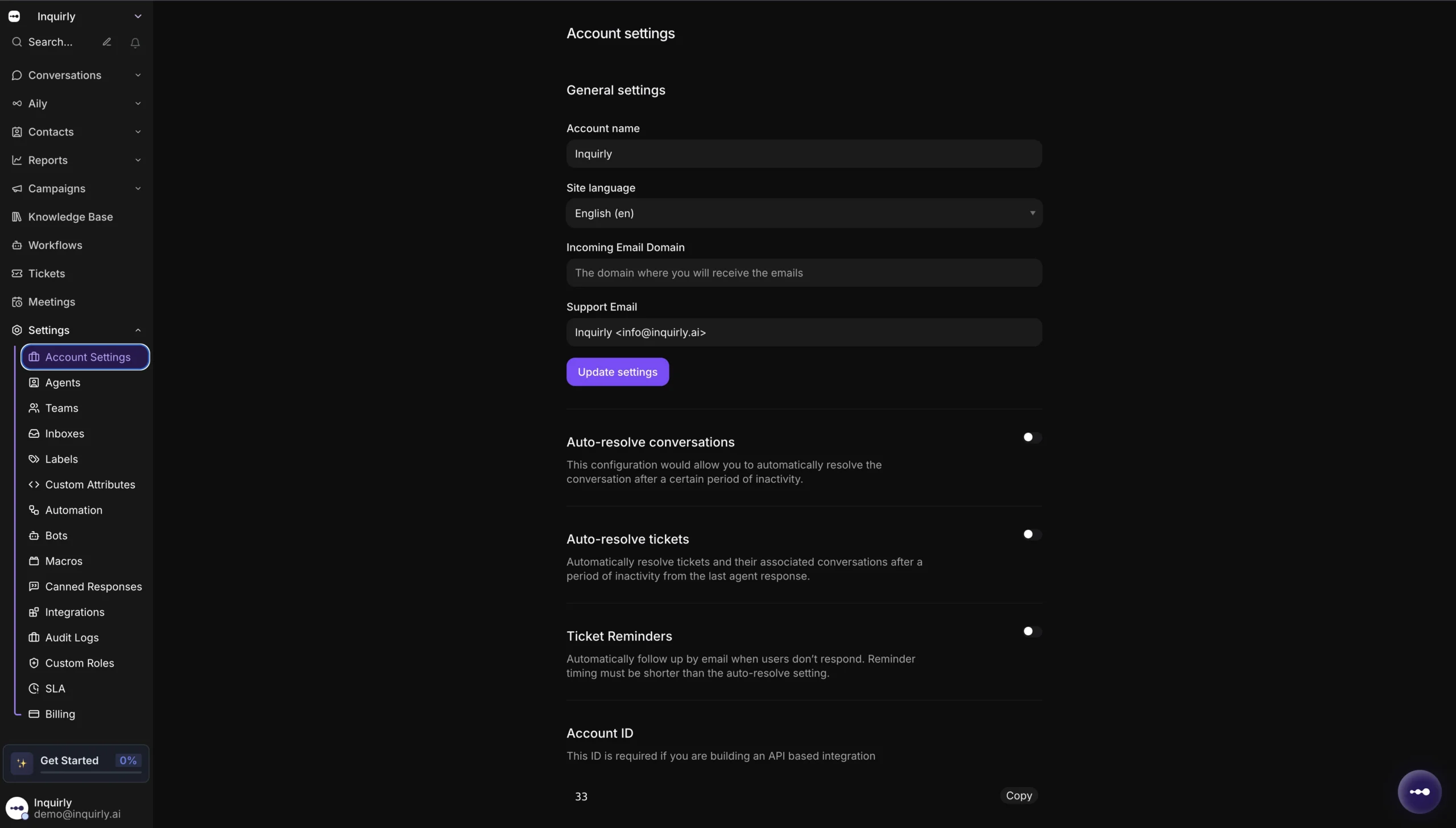
Available Settings
Account name
The name of your organization or workspace as it appears across the platform. Update this if your company name changes or if you set up your account with a placeholder during onboarding.
Example: Hopkins Inc.
Site language
Sets the language for your dashboard and all conversations. Select your preferred language from the dropdown.
Example: Select English (en) to use Inquirly in English.
Auto-resolve tickets
Sets the number of days of inactivity after which tickets or conversations are automatically marked as resolved. This helps keep your queue clean without requiring manual action from your team.
Example: Enter 30 to auto-resolve tickets that have been inactive for 30 days.
Note: Your Account ID is also visible on this page. You will need it if you are building an API-based integration.
Saving Your Changes
Once you have updated the fields, click Update Settings in the top-right corner of the page. A confirmation message will appear when your changes have been saved successfully.
