



Switching to Inquirly from an existing customer support platform is a straightforward process. This guide covers migrations from Intercom, Front, Freshdesk, and Zendesk. All four follow the same core steps — only the contact export process differs per tool.
By the end of this guide, your live chat widget, contacts, and conversation history will all be moved into Inquirly.
Before You Begin
Before touching Inquirly, complete these two steps inside your current tool:
- Remove your existing live chat widget from your website. Find and delete the live chat code snippet that was added to your site’s codebase. Do not install the Inquirly widget until this is done — running two widgets simultaneously will cause conflicts.
- Export your contacts as a CSV file. Instructions for each platform are in the tool-specific section below.
Migration Steps (All Platforms)
Once you’ve completed the pre-migration steps above, the rest of the process is the same regardless of which tool you’re coming from.
Step 1: Create your Inquirly account
Sign up for Inquirly using the account creation guide. If you already have an account, log in and proceed to the next step.
Step 2: Set up your live chat inbox
Create a live chat inbox in Inquirly using the channel setup guide. Once setup is complete, you’ll receive a code snippet to paste into your website’s codebase.
Important: Only add the Inquirly widget code after confirming you have removed your previous tool’s widget (pre-migration step 1). Adding both to your site simultaneously will cause conflicts.
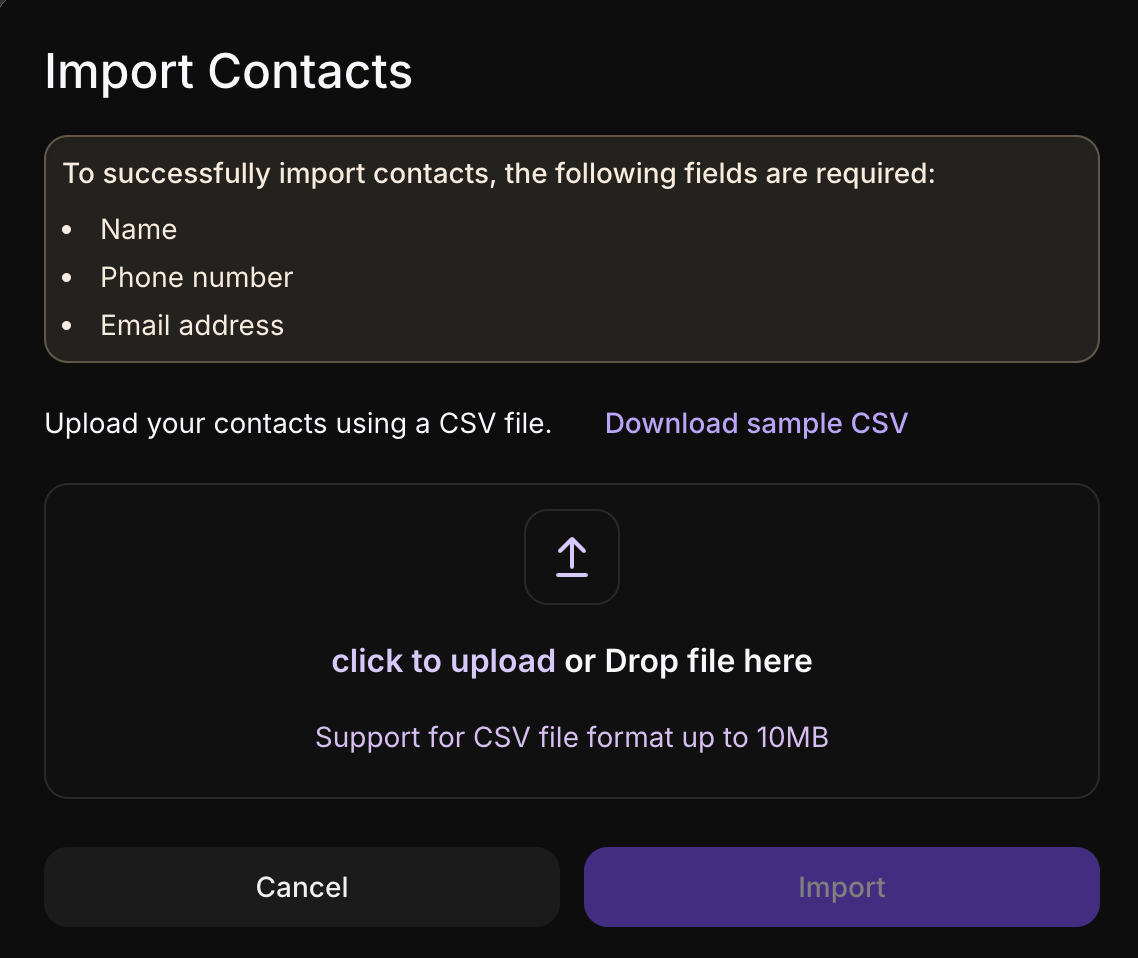
Step 3: Import your contacts
- Go to the Contacts tab in Inquirly
- Click Import
- Follow the on-screen instructions to upload the CSV file you exported from your previous tool
- Once the upload is complete, your contacts will be synced into Inquirly
Step 4: Import your conversations
To migrate your existing conversation history into Inquirly, use the Inquirly Conversations API. The API link and documentation apply to all supported platforms.
Step 5: Personalize your Inquirly setup
Your migration is complete. Now configure Inquirly to match your team’s workflow:
- Update Your Workspace Setings
- Add Agents and Create Teams
- Set Up Automation and Workflows
How to Export Contacts from Each Platform
The only step that differs between tools is how you export your contacts. Follow the instructions for your current platform below.
Exporting from Intercom
- Go to the Contacts tab in your Intercom account
- Open All Users
- Click the More dropdown
- Select Export users
- Save the exported CSV file to your system
Exporting from Front
Export all contacts from Front using Front’s contact export guide. Save the CSV file to your system before proceeding.
Exporting from Freshdesk
- Go to the Contacts tab in your Freshdesk account
- Check the box next to Select all to select all contacts
- Click Export
- Follow the on-screen instructions to complete the export
- Save the CSV file to your system
Exporting from Zendesk
Export all contacts from Zendesk using Zendesk’s contact export guide. Save the CSV file to your system before proceeding.
Migration Checklist
Use this checklist to track your progress:
- [ ] Removed previous live chat widget from website
- [ ] Exported contacts as CSV from previous tool
- [ ] Created Inquirly account
- [ ] Set up live chat inbox and installed widget code
- [ ] Imported contacts into Inquirly
- [ ] Imported conversations via API
- [ ] Configured workspace settings, agents, and automations
