When you first log in to Inquirly, everything you need is accessible from the left sidebar. This guide explains what each section does so you can find your way around quickly and understand where to go for any task.
Sidebar Navigation Overview
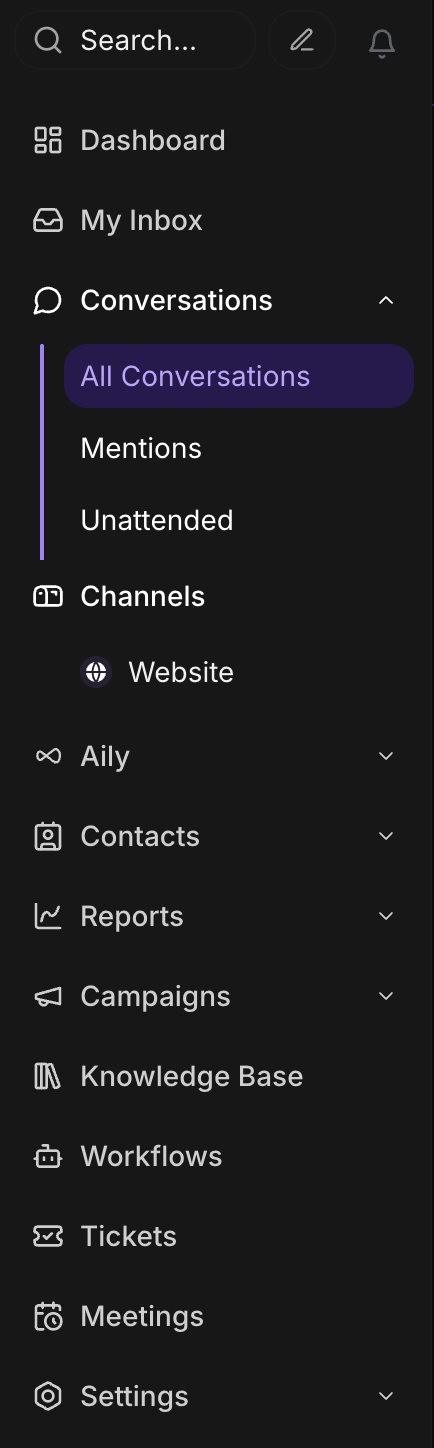
The sidebar is the primary navigation for the entire platform. It runs along the left side of the dashboard and gives you direct access to every major feature area. Here’s what each item does.
Search
Use the search bar to find conversations, contacts, or knowledge base articles across your entire workspace. Search works across all channels and all time — useful when a customer follows up on an older thread or when you need to pull up a contact quickly.
My Inbox
Displays only the conversations currently assigned to you. This is your personal working view — start here at the beginning of each session to see what needs your attention.
Conversations
The Conversations section is where your team handles all incoming messages across every connected channel. It contains several views:
- All Conversations — Every thread across all channels, visible to agents with the appropriate permissions
- Mentions — Threads where a teammate has @mentioned you, requiring your input or attention
- Unattended — New threads that have not yet received a first reply from any agent
- Folders — Pinned filter sets that you or your team have saved for quick access. Use these to build persistent views by channel, tag, assignee, or status
- Channels — Each connected inbox (for example, Website widget, WhatsApp, Email) appears as its own item. Clicking a channel filters the conversation list to show only threads from that source
Aily
The Aily section is where you configure Inquirly’s AI layer. From here you can set up AI assistants and connect knowledge sources — either from your knowledge base or from documents imported via the website crawler. What you configure here directly affects how Aily responds to customers in conversations.
Contacts
Your full contact directory. This includes everyone who has sent you a message through any channel, plus contacts added manually. From this section you can create new contacts, edit existing records, and merge duplicate entries.
Reports
Analytics and performance metrics for your entire support operation. Reports cover conversation volume, response times, resolution rates, and agent and team performance. Use this section to track SLA compliance, identify bottlenecks, and monitor customer satisfaction trends.
Knowledge Base
Where you write, organize, and publish help articles. The knowledge base powers Aily’s answers — when an article is linked or synced to Aily, it becomes a source the AI can reference when responding to customer questions.
Workflows
The workflow builder. Use this section to create guided conversation flows for your website widget — including input collection, conditional logic, Aily AI blocks, and human handoff rules. Workflows define how automated conversations behave before a human agent takes over.
Tickets
The ticketing panel. Use this section to track support issues and customer requests that require structured follow-up. Each ticket supports custom fields, status tracking, priority levels, assignee management, and file attachments.
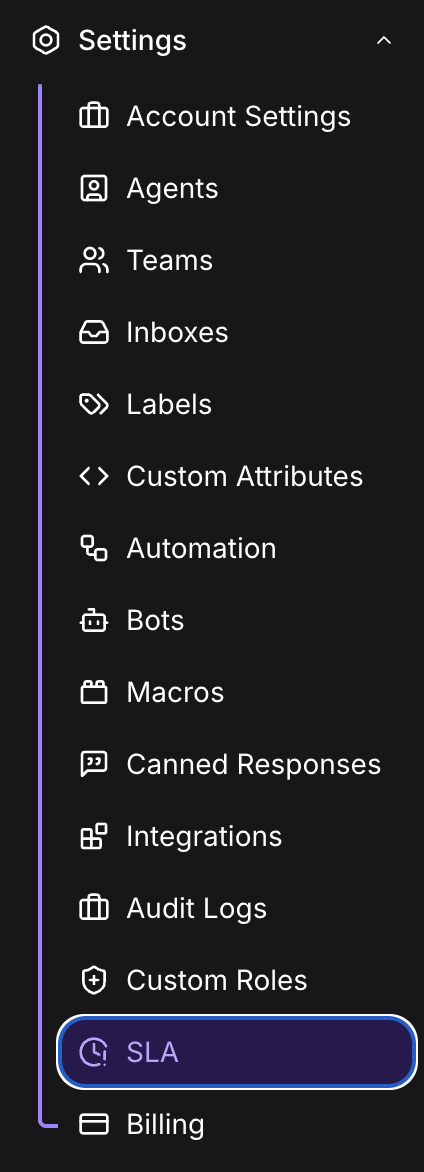
Settings
All workspace configuration and admin tools in one place. Settings is primarily used by admins and team leads. It includes:
- Account Settings — workspace name, language, auto-resolve rules
- Agents — invite and manage team members
- Teams — group agents by function or department
- Inboxes — add and configure channels
- Labels — create and manage conversation tags
- Custom Attributes — define additional fields for contacts or conversations
- Automation — set up rules to trigger actions automatically
- Bots — configure bot behavior
- Macros — create reusable action sequences
- Canned Responses — manage quick-reply templates
- Integrations — connect third-party tools
- Audit Logs — review user actions for compliance and troubleshooting
- Custom Roles — define granular permission sets
- SLA — configure service level agreement rules and escalation policies