



Aily is Inquirly’s built-in AI assistant. It helps customer-facing teams handle conversations faster, surface answers automatically, and reduce the manual work involved in triaging, categorizing, and responding to customer messages.
Aily works across two layers: it serves customers directly through connected inboxes, and it assists agents in real time through Copilot tools and AI-generated insights inside the dashboard.
What Aily Can Do
Aily brings together several AI capabilities that work together across the support workflow:
| Capability | What it does |
| AI chat assistant | Handles customer conversations, answers questions, and guides users through processes |
| Knowledge base integration | Pulls answers from your connected knowledge base articles automatically |
| Auto-labeling | Suggests the most relevant label for each conversation based on its content |
| Auto-prioritization | Suggests a priority level (High, Medium, Low) based on conversation urgency |
| Conversation summary | Generates a real-time summary of each thread for agents before they reply |
| Suggested reply | Drafts an AI-generated response based on the customer’s latest message |
| Aily FAQs | Identifies frequently asked questions missing from your knowledge base |
| Copilot | Provides agents with on-demand AI actions: summarize, suggest answer, rate, label |
Creating an Aily Assistant
You can create multiple assistants to handle different use cases — for example, one per product line, support region, or customer segment. Each assistant is configured independently and connected to specific inboxes.
Steps to create an assistant
- Go to Settings → Aily (Assistant)
- Click Create a new assistant
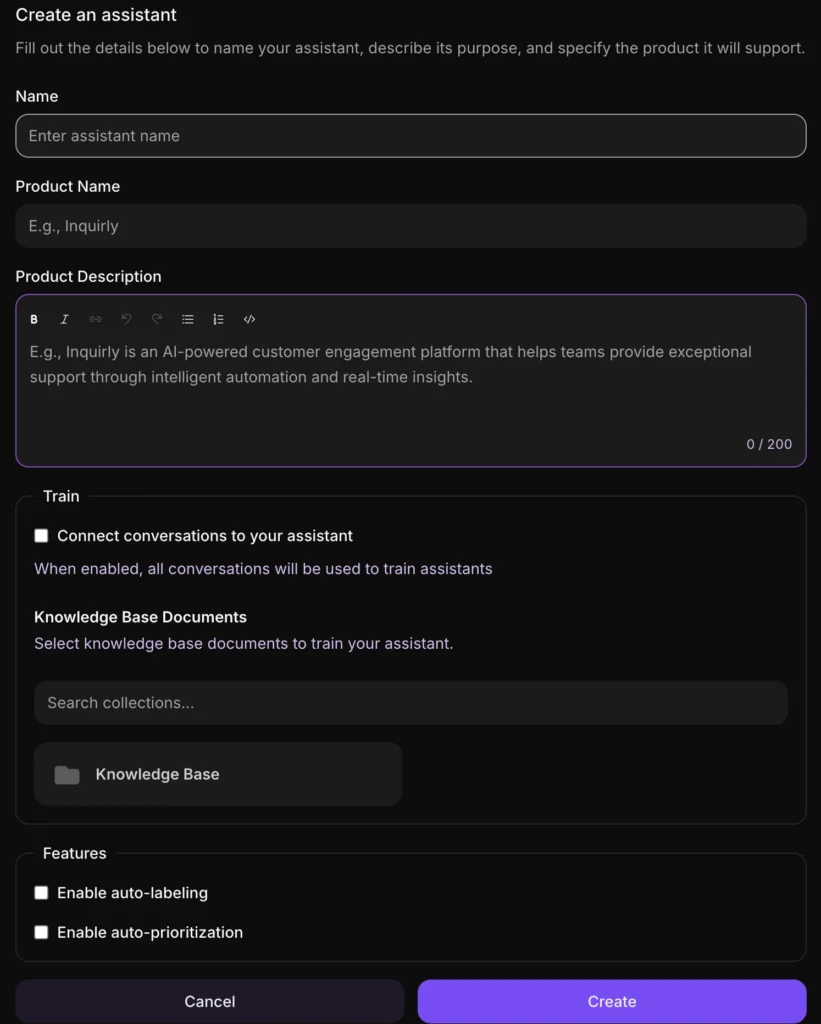
- Fill in the required fields in the dialog:
| Field | Description | Required |
| Assistant name | Internal name used to identify this assistant | Yes |
| Description | A short description of what the assistant does. This is not an instruction for the AI — it is for your team’s reference only | Yes |
| Product name | The product this assistant supports. Helps the AI recognize content gaps and user questions | Yes |
| Generate FAQs from resolved conversations | When enabled, the assistant suggests new FAQ articles by analyzing gaps in your help content | No |
| Capture key details as memories from customer interactions | When enabled, the assistant identifies and stores key details from chats in the contact notes section | No |
Click Create to finalize
Connecting an Assistant to Inboxes
Creating an assistant does not automatically connect it to any inbox. You need to manually link it to the inboxes where you want it active. This lets you assign specific assistants to the right channels, products, or audiences.
Steps to connect an inbox
- From the Assistants list, find your assistant and click the three-dot menu (⋮)
- Select View Connected Inboxes
- Click Connect a New Inbox
- Choose from the available inboxes — for example, Live Chat, WhatsApp, Instagram, or Email
- Click Connect
Your assistant is now live on that inbox. Send a test message to confirm it responds with its initial greeting.

Managing an Existing Assistant
From the assistant card, click the three-dot menu (⋮) to access:
- View connected inboxes — check or change which inboxes the assistant is active on
- Edit assistant — update the name, description, product name, or feature toggles
- Delete assistant — remove the assistant permanently; it will stop answering immediately
Aily FAQs
Aily automatically identifies frequently asked questions that are not yet covered in your knowledge base. When the FAQ feature is enabled, the assistant analyzes resolved conversations and surfaces questions that customers are asking but your documentation doesn’t answer.
This helps you keep your help content accurate over time and reduces the volume of repetitive questions your agents handle manually.
To enable this feature, turn on Generate FAQs from resolved conversations when creating or editing your assistant.
Aily Copilot
Aily Copilot gives agents real-time AI assistance directly inside the conversation view. From the Copilot tab, agents can run on-demand actions against the currently selected conversation:
- Summarize this conversation — get a fast recap of the thread without scrolling back
- Suggest an answer — generate a draft reply based on the latest message and context
- Rate this conversation — evaluate conversation quality for internal review and QA
- Suggest Label — open a label suggestion flow to categorize the conversation
Copilot actions are available in the right-side panel of any open conversation.
For a full walkthrough of Copilot, see How to Use Aily Copilot.
