



Segments let you save a filtered view of your contact list as a named group for quick access. Instead of reapplying the same filters every time, you create a segment once and access it instantly from the sidebar.
Saved segments appear in the left sidebar under Contacts → Segments.
How to Create a Contact Segment
Step 1: Open the contact filter panel
Go to Sidebar → Contacts and click the Filter button in the Contacts toolbar.
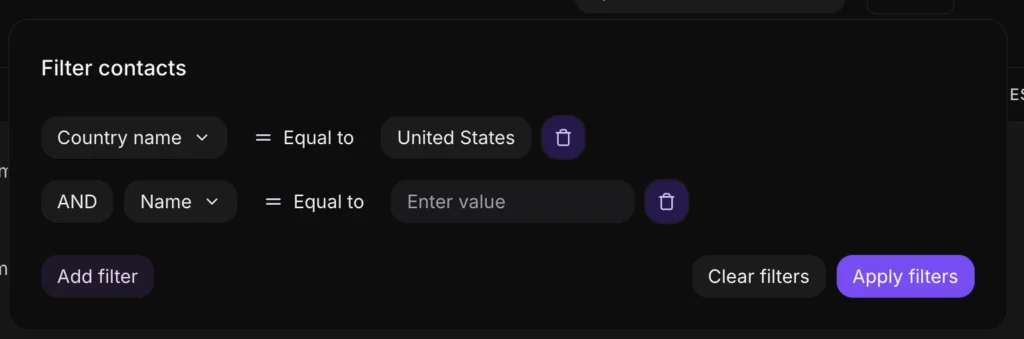
Step 2: Set your filter conditions
The filter panel opens. For each condition, set:
- Filter type — the attribute to filter by. Available options include: Email, Company, Status, Country name, City, Phone number, Identifier, Created at
- Operator — how the condition is evaluated: Equal to, Not equal to, Contains, Does not contain
- Value — the specific value to match
To narrow results further, click Add filter to add additional conditions. Multiple conditions can be combined to create precise groups.
Once your conditions are set, click Apply filters to see the matching contacts.
Step 3: Save the filtered view as a segment
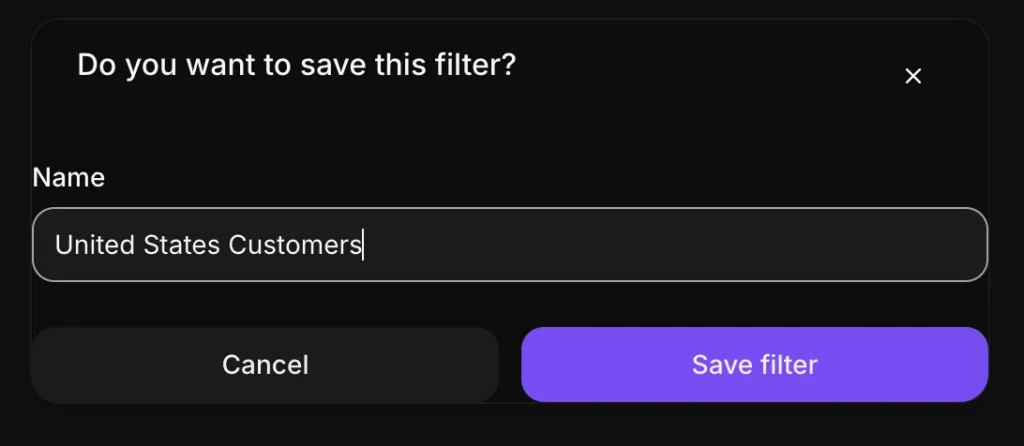
Once the filtered results are showing, click Save filter at the top of the Contacts page.
A dialog box opens. Enter a name for the segment and click Save filter.
The segment now appears in the sidebar under Segments. Click it at any time to instantly load that filtered contact view.
How to View a Saved Segment
Saved segments are listed in the left sidebar under Contacts → Segments. Click any segment name to load its filtered contact list immediately.
How to Delete a Saved Segment
To remove a segment:
- Click the segment name in the sidebar to open it
- Click Delete Filter in the Contacts page header
- Confirm the deletion
Once deleted, the segment is removed from your sidebar. The underlying contacts are not affected — only the saved filter view is removed.
Segment Ideas for Common Use Cases
Segments work best for contact groups your team returns to regularly. Some practical examples:
- Contacts by country — filter by Country name = United States (or any country) for region-specific outreach
- High-value accounts — filter by a custom attribute such as Plan = Enterprise or Company = a specific client
- Recently active contacts — filter by Created at = last 30 days to track new contacts from recent campaigns or onboarding
- Untagged contacts — filter by Labels = Not present to find contacts that have slipped through categorization
Contacts by company — filter by Company = a specific organization to view all contacts from a single account
