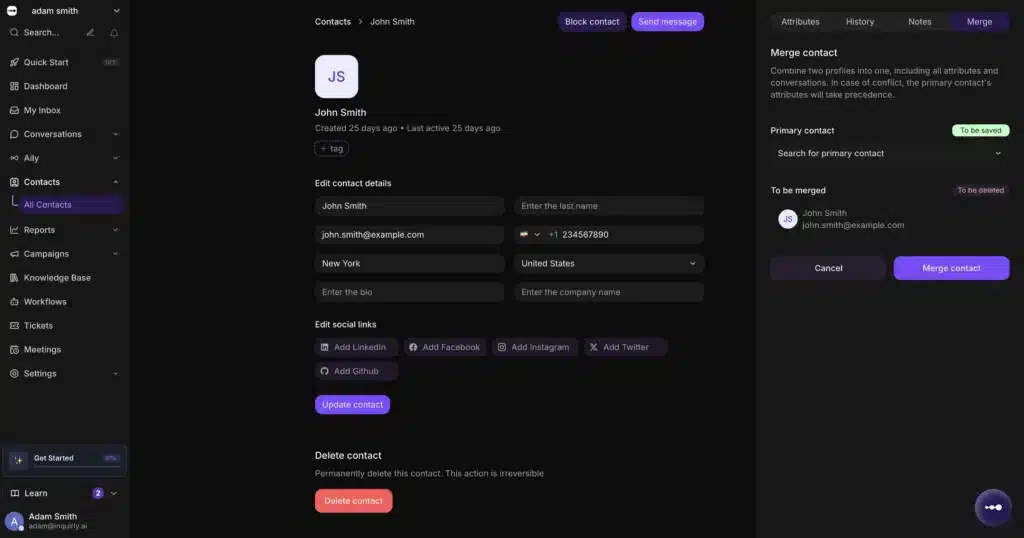
The Contacts module is your central customer database. Every person who sends a message through any of your connected channels can appear here automatically, and you can also add, import, or edit contacts manually.
To access it, go to Sidebar → Contacts.
What You Can Do in Contacts
The Contacts module gives your team a unified view of every customer your workspace has interacted with. From here you can:
- View and search contacts — browse the full contact list or search by name, email, phone number, or label
- Add contacts manually — create individual contact records for customers who haven’t yet messaged through a channel
- Import contacts in bulk — upload a CSV file to bring in contacts from another tool or CRM
- Edit contact profiles — update name, email, phone number, and any custom attribute fields
- Merge duplicate contacts — combine two contact records into one when the same customer appears more than once
- View conversation history — see every conversation associated with a contact from their profile
- Apply labels — tag contacts for filtering and segmentation
- Create segments — group contacts into dynamic or static lists based on shared attributes or behavior
What the Contact Table Shows
When you open the Contacts module, you see a table with a row for each contact. The core columns include:
| Column | What it shows |
| Name | The contact’s full name |
| Primary email address | |
| Phone | Phone number if available |
| Labels | Tags applied to the contact |
| Last Activity | When the contact last interacted with your team |
You can search and filter the table to find specific contacts or groups.
How Contacts Are Created
Contacts are added to your database in three ways:
Automatically from conversations — when a customer sends a message through any connected channel (live chat, email, WhatsApp, and others), Inquirly creates or updates a contact record for them.
Manually by agents or admins — any team member with the right permissions can create a contact directly from the Contacts module.
By import — upload a CSV file to bring contacts in from another platform. This is the standard method when migrating from another tool.
Contacts and Conversations
Contacts and conversations are linked. Every conversation is associated with a contact record, and every contact profile shows a full history of their conversations with your team. This connection means agents can see context about who they are talking to directly from the conversation view — via the Contact tab in the right-side panel.