



Inquirly’s editor is designed to add structure and meaning to your content, not just visual decoration. This guide covers all available formatting options, block types, and best practices for writing articles that work well for both readers and Aily AI.
Inline Text Formatting
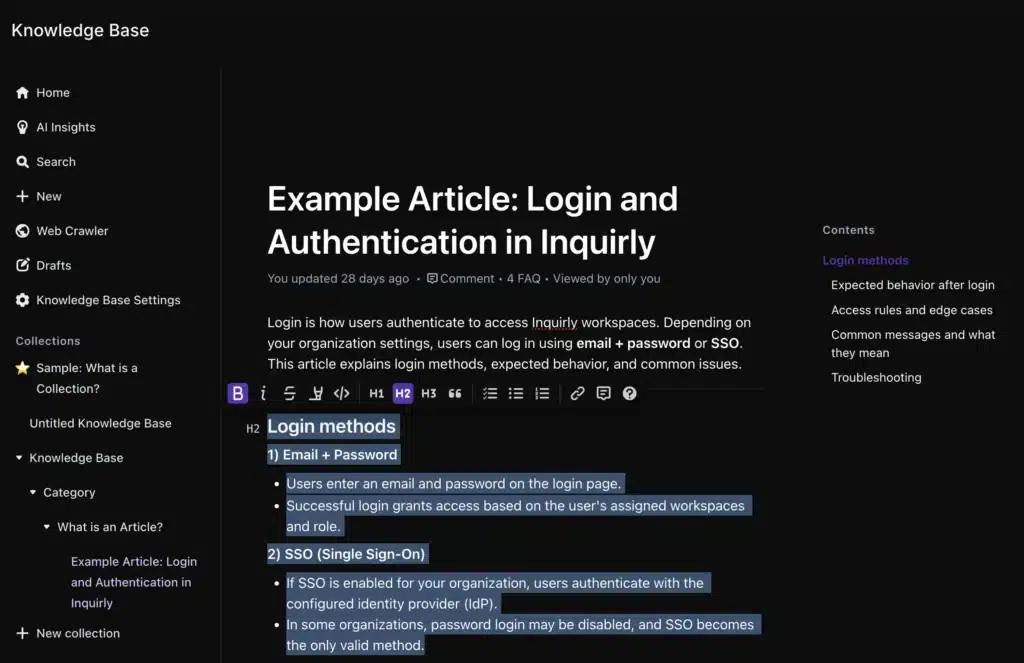
When you select text in the editor, a toolbar appears with inline formatting options:
| Option | Shortcut |
| Bold | **text** or Cmd/Ctrl + B |
| Italic | *text* or Cmd/Ctrl + I |
| Strikethrough | — |
| Highlight | Multiple colors available |
| Monospace | — |
| Underline | — |
If commenting is enabled in your workspace, an additional control for adding inline comments appears on the right side of the toolbar.
Markdown Support
You can write directly in Markdown or paste Markdown content — Inquirly converts it to rich text automatically.
Supported examples:
- **bold** → bold
- ## Heading → H2 heading
- Lists, blockquotes, and code fences (“`) are all supported
Keyboard Shortcuts
Press ? or click the keyboard icon in the bottom-right corner of the editor to open the full shortcut reference. Common actions also appear in context menus throughout the editor. Use Cmd on macOS and Ctrl on Windows/Linux.
Tables
Creating a table
Three ways to insert a table:
- Click the + button next to an empty paragraph and select Table
- Type /table on a blank line
- Paste a table from another app or website — it converts automatically
Managing rows
- Click the ⋮ handle between rows to insert a new one
- Select a row → Add row above or Add row below
- Cmd/Ctrl + Enter inside a row inserts a new row below
- To delete: select the row → Delete, or press Cmd/Ctrl + Backspace
Managing columns
- Click the ⋮ handle between columns to insert a new one
- Select a column → Add column before or Add column after
- Drag the vertical border between columns to resize
Headers and full width
- Toggle a Header row from the floating table menu
- Select the left-most column to enable a Header column
- Select the table (top-left selector) → Full width to stretch across the full page width
Exporting
Select the table → Download as CSV to export the contents.
The Block Menu
Documents are built from text and rich content blocks. To open the block menu:
- Click the [+] button on an empty line, or
- Type / on a blank line and filter by block name
Block Types
Headings
Available heading levels: Big heading, Medium heading, Small heading, Extra small heading.
Lists
- Bulleted list — use for unordered options or features
- Ordered list — use for sequential steps
Images
Insert via the block menu or drag-and-drop directly into the editor. You can resize, reposition, and add captions. Supported formats: JPG, PNG, GIF. Retina images render at the correct resolution automatically.
Videos
Upload from the block menu or drag-and-drop. Videos can be resized and captioned.
Note: Videos are not re-encoded by Inquirly. Use widely supported codecs to ensure browser compatibility.
File attachments
Upload PDFs, ZIPs, or other binary files. Files display with their name and file size. Images can also be uploaded this way.
Code
Insert a code block via the block menu or using Markdown fences (“`). Syntax highlighting supports many programming languages. Code pasted from editors like VS Code is detected automatically. You can set the language manually and toggle line numbers in editor settings.
Math (KaTeX)
Add a Math block via /math or $$$. Write equations using TeX syntax (for example, \newline for a new line). See the KaTeX documentation for the full command reference.
Notices
Use Notice blocks to highlight important information without disrupting the document flow. Four notice types are available:
- Success — positive confirmation
- Info — neutral informational note
- Warning — caution for something that requires attention
- Danger — critical alert for something that could cause problems
Embeds
Paste a supported link or iframe, or insert via the / menu to embed interactive content inline.
Supported services include: Figma, Framer, YouTube, Vimeo, Airtable, Miro, Pitch, Typeform, CodePen, Lucidspark, Lucidchart, Google Docs, Google Sheets, Google Slides, Google Maps, and more.
If you do not want to embed, add a standard hyperlink from the formatting toolbar instead.
Diagrams (Mermaid)
Create a diagram by inserting a code block and setting the language to Mermaid diagram, or type /diagram. Switch between source and visual diagram view using the toggle in the block header.
Supported diagram types: Flowchart, Sequence, Gantt, Class, Git, Entity-Relationship, User Journey, Quadrant Chart, XY Chart.
Tip: Use Full width view for diagrams to maximize the available display space.
Writing Aily-Friendly Articles
Aily quotes directly from your articles when answering customer questions. The better your articles are structured, the more accurately and confidently Aily can respond. Follow these patterns for best results.
1. Put the answer first
Start every article with a 2–3 sentence direct answer to the main question. Keep it factual and self-contained — this is what Aily is most likely to quote.
Example:
Short answer: You can reset your password from Settings → Security → Reset password. You’ll need access to your account email.
2. One intent per article
Each article should address a single user question or task. If you find yourself covering two distinct topics, split the article and link between them.
3. Use customer language in titles and headings
Write the title the way a customer would ask the question — for example, “Can’t log in” rather than “Authentication Troubleshooting.” Add an Also called: line with common synonyms and phrasings so Aily can match more question variations.
Example:
Also called: login issue, sign-in error, cannot log in
4. Keep sections compact and scannable
- Aim for 50–200 words per section
- Use H2/H3 headings every few paragraphs
- Use numbered steps for procedures and bullets for options
5. Use exact UI labels and repeat the subject
Reference UI paths and button labels exactly as they appear in the product (bold them). Avoid vague pronouns — repeat the noun so each sentence makes sense out of context.
Example:
Go to Inbox → Widget Settings → Ticketing, then click Enable Ticketing.
6. State constraints and edge cases near the top
Include plan requirements, role restrictions, limits, time windows, and regional notes early in the article. Use an Important notice block for must-know rules.
Important: Articles under 150 characters are not synced and will not be used by Aily.
7. Prefer structured information
- For comparing options, plans, or limits → use a table
- For troubleshooting → use Symptom → Cause → Fix bullets
8. Keep critical information in text, not images
If you include screenshots, also describe the key steps in text. Do not hide instructions inside images or PDFs — Aily cannot read them.
9. Maintain and re-sync after edits
After making changes to a published article, use Re-Sync to ensure Aily picks up the latest version. Keep article titles stable unless the article’s intent has genuinely changed — title changes can affect how Aily routes questions.
