



This article covers the full set of Knowledge Base editor and workspace features beyond basic article creation — including collaboration tools, comments, document organization, import and export, templates, and more.
Collaborative Editing
Up to 100 team members can edit the same document simultaneously. Every change — each character typed or deleted — is saved and synced automatically across all open tabs and devices in real time. There is no save button.
Real-time cursors
When other users are active in the same document, their cursor and text selections appear as colored carets. Hover over a caret to see the user’s name.
Observer mode
Click on another active editor’s avatar at the top of the document to follow their movements through the document. This is useful during meetings or live calls as a lightweight alternative to screen sharing.
Comments
Inquirly supports comments at both the document level and on specific text selections.
Creating a comment
- On selected text: Select the text, then click the comment icon that appears at the end of the formatting toolbar. The linked text shows with a blue underline.
- At the document level: Open the comments sidebar via the button below the document title, the document menu, or the command menu.
Tip: Comments are not visible in publicly shared documents — they are safe for private editorial discussions about published content.
Replies
Comments support a single level of nested replies. Click on a comment or its linked text to open the thread and add a reply. Team members who have participated in the thread are notified when a new reply is added.
Reactions
React to comments with emojis by clicking the smiley face icon. Reactions are visible to the entire workspace. To see a full list of reactions and who added them, open … → View Reactions.
Resolving comments
Any user with permission to write comments can resolve a thread:
- From the comments sidebar, click … on the first comment in the thread
- Select Mark as resolved
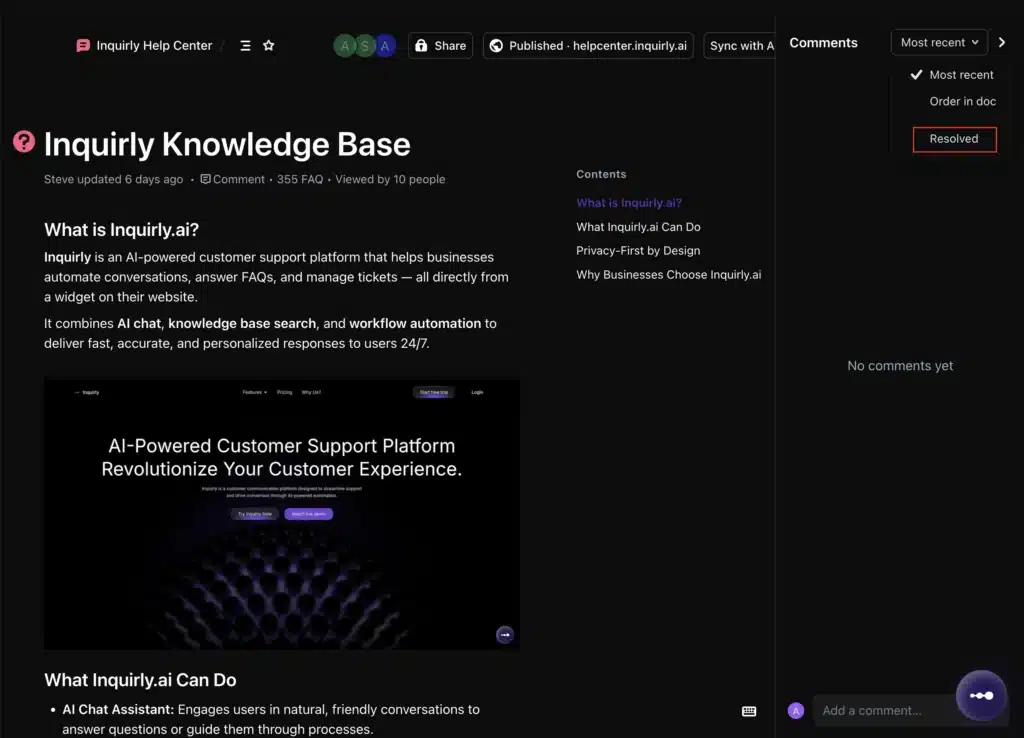
Resolved threads are hidden but can be viewed again using the checkmark icon in the top-right of the sidebar. You can unresolve a thread if the discussion needs to continue.
Mentions
Type @ followed by a teammate’s name to mention them in a document or comment. The mentioned user receives a notification.
Comment formatting
Comments support: Bold, italic, underline, strikethrough, inline code, hyperlinks, emojis (via the : shortcut), and images (paste directly into a comment).
Table of Contents
Every document in Inquirly automatically generates a table of contents from its headings.
Visibility: Toggle the contents panel using the button in the header breadcrumb (next to the document title) or by pressing Ctrl + Alt + H. The panel is sticky — it stays visible as you scroll down long documents.
Position: By default, the table of contents appears on the left side of the document. Admins can change its position in Settings → Display.
Find and Replace
The editor supports Find and Replace on both web and desktop apps.
- Open with Cmd + F (macOS) or Ctrl + F (Windows/Linux)
- Supports case-sensitive search and regular expressions
- Press the shortcut twice to use your browser’s native find feature instead
Exporting Documents
Individual documents can be downloaded in HTML or Markdown format. Content is optimized for each format to ensure readability.
How to export:
- Use the command menu (⌘ + K / Ctrl + K) or the … menu on the document
- A Copy as Markdown shortcut is also available in the command menu for quick clipboard use
Importing Content
Importing from another tool
If your team already has a knowledge base in another tool, Workspace Admins can import existing documents, pages, and attached files into Inquirly via Knowledge base → Import.
Supported import sources:
| Source | Format |
| Confluence | Via export files |
| Notion | Via export files |
| Word documents | .docx |
| Markdown files | .md |
| Another Inquirly workspace | JSON |
Imported content is structured as Inquirly collections and nested documents.
Additional import options:
- Drag and drop HTML, Markdown, or plain text (.txt) files directly into a collection (requires write access)
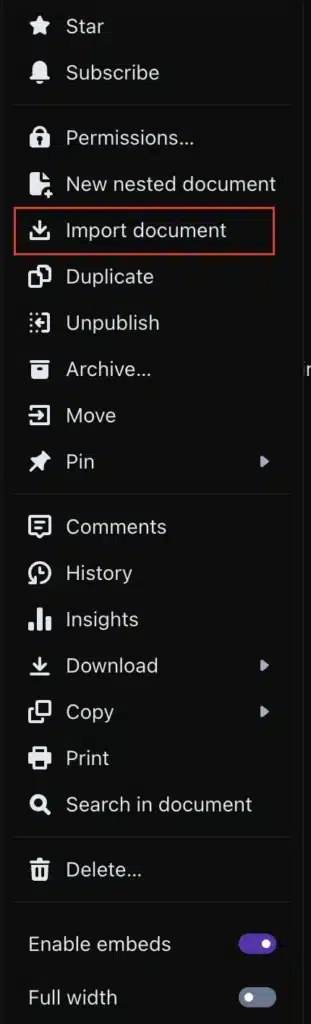
- Import into the nested structure of an existing document via … → Import document
- If your current tool supports HTML or Markdown exports, those files can be imported directly
Note: Import fidelity may vary. Each platform’s export format is unique, and a 100% accurate import is not guaranteed for every service. For advanced import needs, Inquirly provides an API — refer to the Developer Documentation.
Migrating between Inquirly workspaces
The recommended format for migrating between Inquirly instances (cloud or self-hosted) is JSON.
Steps:
- Export content to a JSON file from the source workspace
- Import that file into the target Inquirly instance
Important notes:
- File size limit: approximately 1.5GB
- Document authorship is not preserved — Inquirly recommends creating a dedicated import user (for example, “Inquirly Importer”) to attribute imported content
- Only documents and attachments are migrated — workspace settings, permissions, and users/groups are not included
Templates: Placeholders and Variables
Templates support two types of dynamic content that make it easier to create structured, consistent documents.
Placeholders
When editing a template, select any text in the formatting toolbar and convert it to a placeholder. Placeholders act as guided input fields — when a user creates a document from the template, they can type into the placeholder. The placeholder text is replaced with their input.
Use placeholders to provide guidance or instructions for filling out recurring document types.
Variables
Variables automatically insert live values when a document is created from the template:
| Variable | What it inserts |
| {datetime} | Current date and time in local format |
| {date} | Current date only |
| {time} | Current time only |
| {author} | Name of the user creating the document |
