



Workflows are guided conversations you design and deploy inside your Inquirly widget. They let you capture structured information, branch based on customer answers, connect to your systems via API, and hand off to a human agent or Aily when needed.
Where free-form chat relies on agents to ask the right questions, workflows make those conversations consistent, repeatable, and automatic.
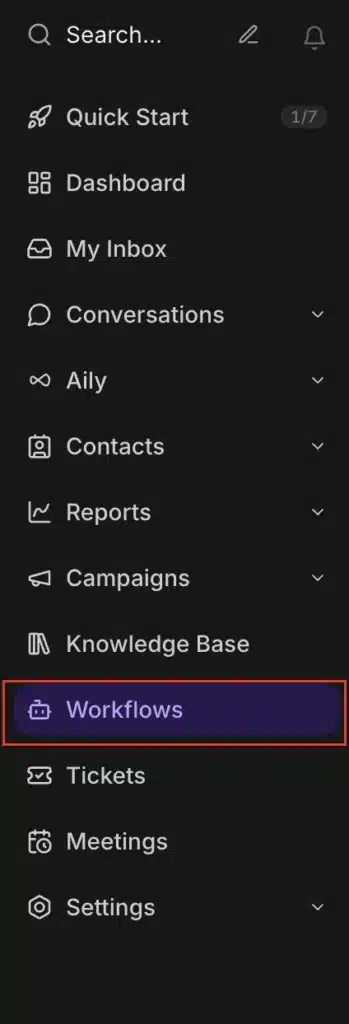
To access Workflows, go to Sidebar → Workflows.
What a Workflow Does
A workflow runs when a customer opens your widget and interacts with a structured conversation you have built. The workflow controls the flow — asking questions, collecting inputs, applying logic, and routing the conversation — rather than leaving it to the agent or AI to improvise.
Workflows are most useful when you need:
- Structured inputs before a ticket is created or a conversation is assigned
- Branching logic that routes customers to different teams or outcomes based on their answers
- Repeatable processes that must follow the same steps every time
- Automation of tasks that do not require a human to handle
When to Use a Workflow
| Use case | What the workflow does |
| Lead capture and qualification | Collects name, email, company size, and interest area; routes to Sales, Support, or another team based on answers |
| Ticket triage | Gathers issue type, priority, screenshots, and account details before creating or assigning a ticket |
| Pre-form replacement | Replaces long static forms with short conversational steps — email, phone, file upload, dropdown, button selection |
| Self-serve tasks | Guides users through order checks, quote requests, demo bookings, or API-triggered actions |
| Out-of-hours handling | Explains availability, collects the customer’s issue, and sets expectations for when they will hear back |
| Compliance and scripted flows | Ensures important steps are always followed in the same order — useful for regulated or high-stakes interactions |
When you probably do not need a workflow
You likely do not need a workflow for one-off, unstructured conversations where an agent or Aily can reply directly. For pure FAQ browsing, use your Knowledge Base and Help Center content instead.
Quick test: If you need structured information, validated fields, branching logic, or a repeatable process → use a workflow. If the conversation can start and end with a direct reply → use chat.
Three Ways to Create a Workflow
From scratch
Build a new workflow manually on an empty canvas. Use this when your flow is custom, complex, or specific to your team’s process and no template covers it.
From a template
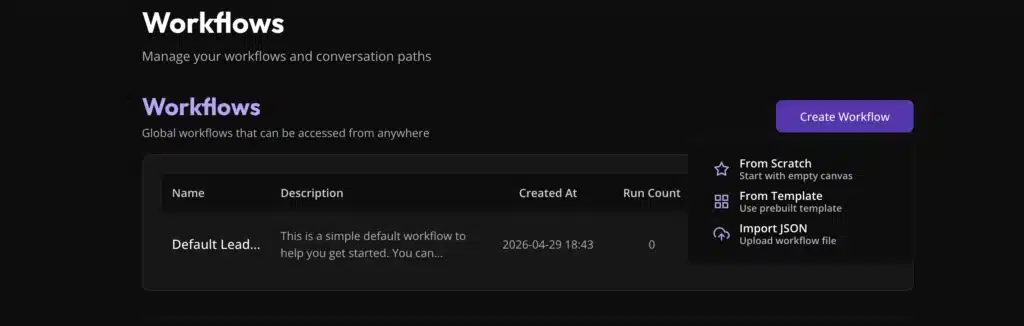
Start with a prebuilt workflow. Select a template, preview it, create the workflow, then edit it for your use case. Templates are faster than starting from scratch for common patterns like lead capture or ticket triage.
See Create a Workflow from a Template for the full walkthrough.
Import from JSON
Upload an existing workflow file into Inquirly. Use this when moving workflows between workspaces, restoring a saved workflow, or using a workflow shared by a teammate.
See Import a Workflow from JSON for the full walkthrough.
Creating Your First Workflow from Scratch
- Go to Sidebar → Workflows
- Click Create Workflow
- Select From Scratch
- Give the workflow a clear name and an optional description
- In the canvas, drag a step from the left panel and drop it after the Start node
- Click a step to configure its text, validation rules, variables, or answer options
- Connect steps by dragging from the small circle on one node to another node
- Click Manage Inboxes to choose which inboxes this workflow is available in
- Click Save
After saving, the workflow is active in the inboxes you selected.
Workflow Building Blocks
Inquirly workflows are built from nodes you connect on a canvas. Each node type controls a different part of the conversation. The full set of node types, logic options, and integration capabilities are covered in the sub-articles below.
Workflow Sub-Articles
| Article | What it covers |
| Mastering Inquirly Blocks: Design, Logic, and Integration | Full reference for all workflow block types |
| Aily Block | How to use the Aily AI block inside a workflow |
| Paths and Path Finder | How to build branching logic and conditional paths |
| Import a Workflow from JSON | How to upload an existing workflow file |
| Create a Workflow from a Template | How to start from a prebuilt workflow template |
