



The Aily block drops an AI-powered conversation step into your workflow at exactly the point you choose. When a user reaches the Aily block, they can chat with Aily directlyو asking questions and getting answers from your connected Knowledge Base — before the workflow continues.
Prerequisite: Before adding the Aily block to a workflow, you need a configured Aily assistant with a connected Knowledge Base, set tone and language, and publishing enabled. See What Is Aily AI? for setup instructions.
How the Aily Block Fits Into a Workflow
By default, if no workflow is attached to an inbox, the widget hands all user questions directly to Aily. Once you attach a workflow, the widget follows your designed steps instead. The Aily block is how you reintroduce AI assistance at a specific point inside that structured flow.
Two common patterns:
| Scenario | What to do |
| Entirely free-form conversation | Don’t use a workflow — or start the workflow immediately with an Aily block |
| Structured journey with AI at a specific point | Build the workflow steps first, then drop an Aily block where you want AI to assist |
When to Use the Aily Block
Use the Aily block when:
- You want natural Q&A in the middle of a structured journey — for example, “Any questions about pricing before booking a demo?” placed between a pricing step and a booking step
- You want Aily to handle follow-up questions while keeping users inside your guided flow rather than breaking out entirely
- You need Path Finder to detect what the user is talking about and route them to a specific branch (for example, bug report, refund request, pricing inquiry)
How to Add the Aily Block
- Open Workflows and select your flow
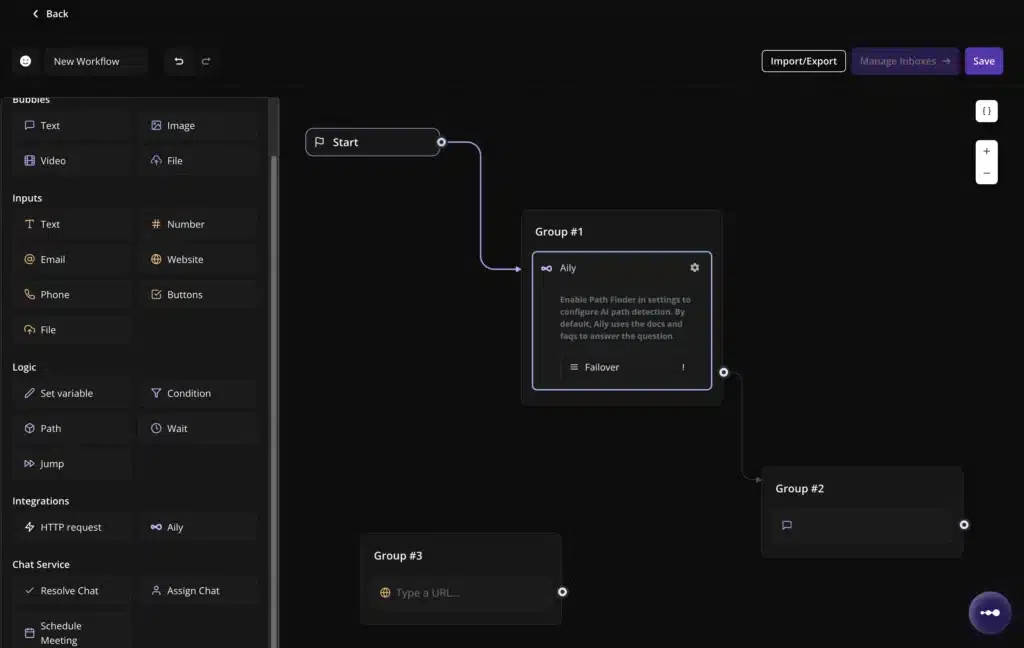
- From Integrations, drag Aily onto the canvas and connect it after the previous step
- In the Aily block settings:
- Write a short intro message that orients the user — for example: “You’re chatting with Aily. Ask any question about our product.”
- Confirm your Knowledge Base is connected in Knowledge Base Settings so Aily answers from your articles
- Choose what happens after Aily finishes: continue to the next step, assign to an agent, or resolve the chat
- Click Save and test in your widget
How Aily Responds: Two Modes
The Aily block operates in one of two modes depending on whether Path Finder is enabled.
Mode A: Default Q&A (Path Finder off)
When Path Finder is disabled, Aily behaves as a straightforward AI chat step:
User sends a message
↓
Aily searches connected Knowledge Base (Docs/FAQs)
↓
- KB match found → Aily answers
└── No confident match → Failover fires → next block
Use this mode when the goal is to answer questions accurately from your Knowledge Base without any topic-based routing.
Mode B: Topic Routing (Path Finder on)
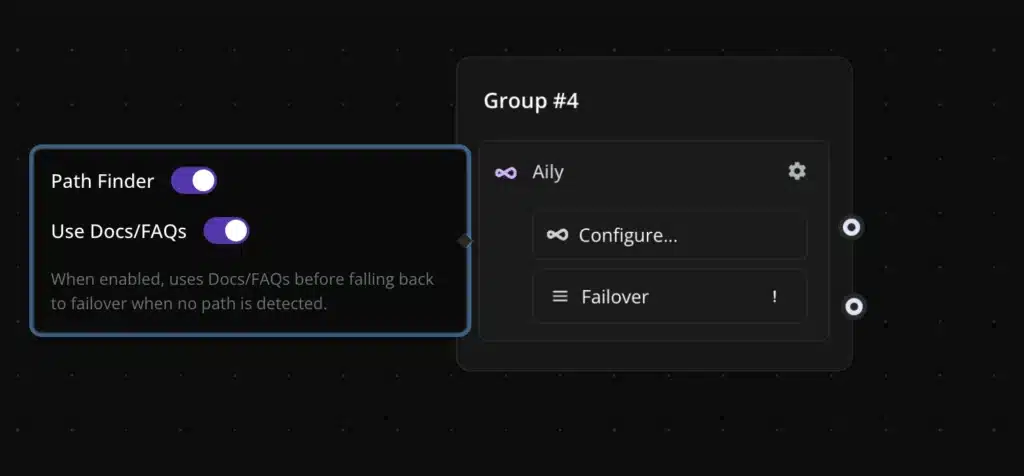
When Path Finder is enabled, Aily first tries to detect whether the user’s message matches one of the topics (Paths) you have attached to the Aily block. Topic detection runs before Knowledge Base lookup.
User sends a message
↓
Path Finder checks for a topic match
├── Match found → user is sent to that Path → flow continues on that branch
└── No match → Aily continues as normal Q&A
↓
Use Docs/FAQs = ON → Aily searches KB
├── KB answer found → Aily answers
└── No confident match → Failover fires → next block
Example Paths you might attach:
- “Login issue” → routes to a login troubleshooting branch
- “Transaction issue” → routes to a billing or payments branch
- “Pricing” → routes to a pricing or demo booking branch
Important: Path detection success or failure does not trigger Failover. Failover only fires when Aily cannot answer a question — not when a Path is or isn’t matched.
Failover
The Aily block has a single output connector: Failover. To continue your workflow after the Aily step, connect the next block to the Aily → Failover output.
When Failover fires
Failover triggers when Aily cannot provide a confident answer — for example, when there is no matching content in your connected Knowledge Base for the user’s question.
What to connect to Failover
Common next steps after Failover:
- Assignment block — hand the conversation off to a human agent
- Text Bubble — display a message explaining that a human will follow up
- Another Aily block — escalate to a different assistant with a broader KB
- Resolve — close the conversation if no further action is needed
Failover is independent of Path Finder. Whether or not a Path matches, Failover only activates based on whether Aily can answer the user’s question.
Summary: Aily Block Behavior at a Glance
| Setting | Behavior |
| Path Finder OFF, Use Docs/FAQs ON | Aily answers from KB; Failover fires if no match |
| Path Finder ON, path matched | User routes to the matched Path; no Failover |
| Path Finder ON, no path matched, KB match | Aily answers from KB; no Failover |
| Path Finder ON, no path matched, no KB match | Failover fires → next block |
