



Paths are structured conversation flows you design for specific customer intents — bug reports, transaction problems, account issues, or any repeatable scenario where you want a guided experience rather than free-form chat.
Path Finder is the detection engine that decides when to start a Path. It lives inside the Aily block in a workflow and automatically routes a customer into the right Path when their message matches.
How It Works
When a customer sends a message and the conversation reaches the Aily block, Path Finder compares the message against your available Paths and routes the customer into the best match — based on the Path name and description you have written.
Customer sends a message
↓
Reaches the Aily block (Path Finder enabled)
↓
Path Finder evaluates message against Path descriptions
├── Match found → customer enters the matched Path
└── No match → Aily continues as normal Q&A from Knowledge Base
If Path Finder is not enabled on the Aily block, Aily simply answers using your connected documents and FAQs without any Path routing.
Setting Up Path Routing in a Workflow
Setting up Paths routing involves three steps in order:
Step 1: Place an Aily block in your workflow
The Aily block becomes the routing point — the moment in the flow where Path Finder evaluates the customer’s message and decides whether to continue as AI chat or branch into a Path.
Step 2: Enable Path Finder on the Aily block
Open the Aily block settings and enable Path Finder. Once enabled, the Aily block becomes aware of your Paths and can trigger one when it detects a match.
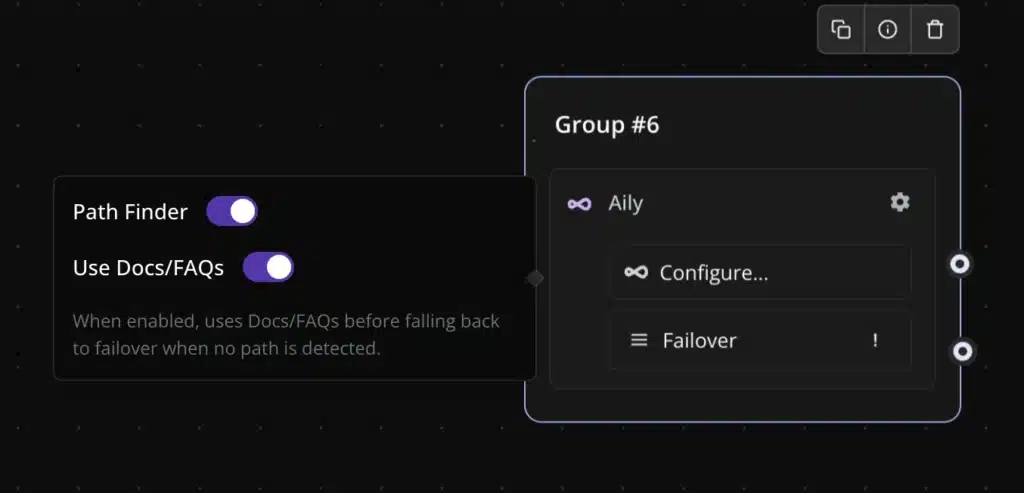
Step 3: Connect your channel to the workflow
Go to your channel (inbox) settings and connect it to the workflow. When customers enter through that channel, they follow the workflow. When they reach the Aily block, Path Finder evaluates their message and routes accordingly.
If the channel is not connected to the workflow, the Path routing will not run. The channel connection is required.
Creating and Managing Paths
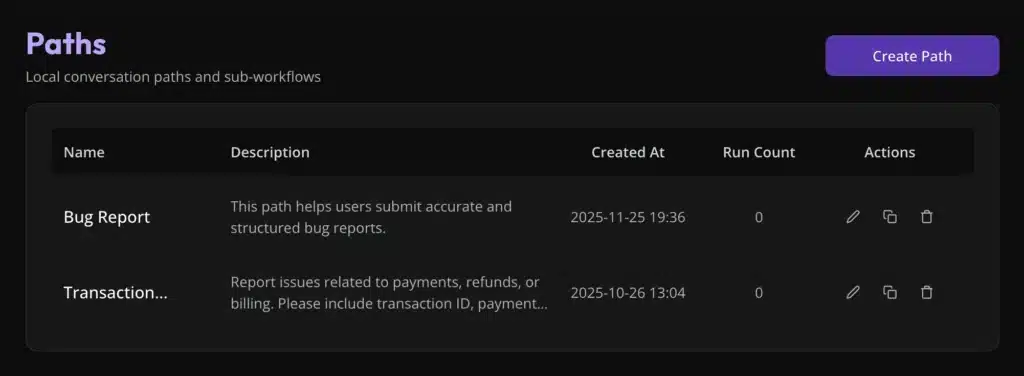
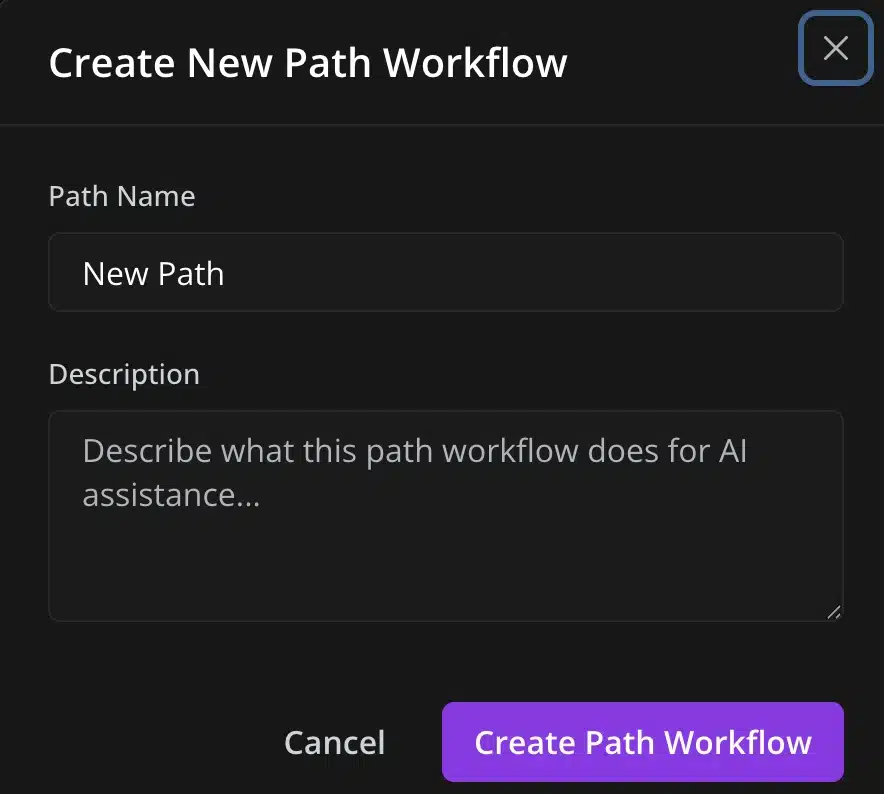
Paths are created and managed in Workflows → Paths. Each Path has two required fields:
| Field | Purpose |
| Name | Internal label and one of the detection signals Path Finder uses |
| Description | The primary signal Path Finder uses to decide when this Path should trigger |
A Path should contain all the steps needed to guide a customer through a specific issue. For example:
- Bug Report Path — asks for device, browser, steps to reproduce, and a screenshot
- Transaction Problem Path — asks for transaction ID, payment method, and date
- Account Access Path — asks for email, account type, and description of the issue
Writing Path Descriptions for Accurate Routing
The description is the most important part of any Path. Path Finder uses it as the primary matching signal, so how you write it directly determines whether the right Path triggers.
Write descriptions as detection instructions, not marketing text.
| ❌ Weak description | ✅ Strong description |
| “Helps customers with bugs” | “Trigger this Path when a customer reports a bug, error, crash, or unexpected behavior in the product. Covers: app errors, broken features, visual glitches, steps to reproduce issues. Does not cover: billing problems, account access, or general how-to questions.” |
| “For payment issues” | “Trigger when a customer mentions a failed payment, incorrect charge, missing refund, or transaction error. Covers: payment failures, duplicate charges, refund status. Does not cover: general pricing questions or plan changes.” |
Rules for strong Path descriptions:
- Use the same language your customers use in real messages
- Include the most common keywords that appear in actual support conversations for that issue type
- Explicitly state what the Path covers and what it does not cover — this prevents overlap
- Give each Path a distinct intent boundary so Aily can tell them apart
If two Paths are too similar, Aily may route the customer to the wrong one. Make descriptions clearly different and ensure each Path has a non-overlapping intent scope.
What the Customer Experiences
From the customer’s perspective, the experience is seamless. They type their question normally — they never see Path detection happening. The system silently evaluates the message and responds appropriately:
- If a Path matches → the customer is guided through a structured set of steps tailored to their issue
- If no Path matches → Aily continues as a normal assistant and responds from your Knowledge Base content
The customer does not know they have been routed. The transition into a Path feels like a natural continuation of the conversation.
Troubleshooting: Paths Not Triggering
If customers are not being routed into Paths when they should be, check these three things in order:
- Is Path Finder enabled on the Aily block? Open the Aily block in your workflow and confirm Path Finder is toggled on. This is the most common cause of paths not triggering.
- Is the correct channel connected to the workflow? Go to your inbox/channel settings and confirm it is connected to the workflow that contains the Aily block with Path Finder. If the channel is connected to a different workflow or no workflow, Path Finder will not run.
3. Are the Path descriptions specific enough? Review each Path description and compare it to the actual messages customers are sending. If the description uses internal terminology that customers do not use, Path Finder cannot match them. Rewrite the description using the exact words that appear in real support conversations.
