



Auto-Labeling and Auto-Prioritization are AI-powered features that help your team categorize and triage conversations faster. When enabled, Inquirly analyzes each conversation and suggests the most relevant label and priority level based on what the customer is saying — reducing manual sorting and helping agents focus on the most urgent issues first.
Suggestions are reviewable, not automatic. Agents can apply, adjust, or override them at any time.
How to Enable Auto-Labeling and Auto-Prioritization
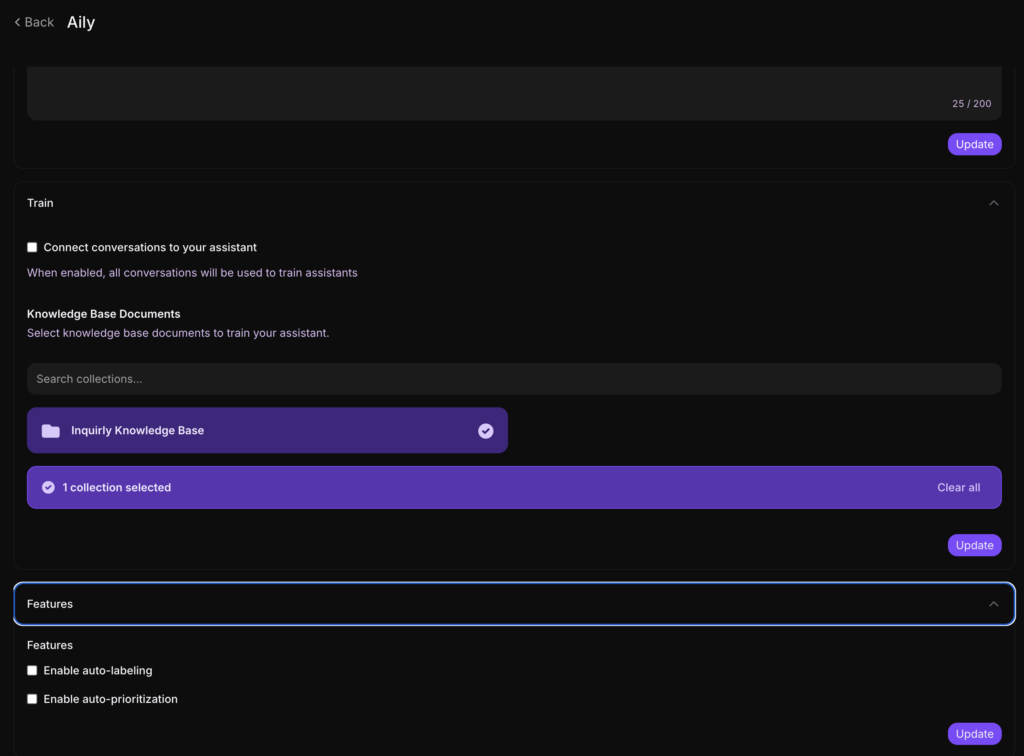
Both features are configured in the Aily (Assistant) settings. Each AI assistant can have auto-labeling and auto-prioritization turned on or off independently, depending on how your workspace routes and categorizes conversations.
Steps to enable
- Go to Settings → Aily (Assistant)
- Select the assistant you want to configure
- Under the Features section, check the boxes for:
- Enable auto-labeling
- Enable auto-prioritization
- Click Update
Once enabled, conversations will begin receiving suggested labels and priority levels based on their content. You can confirm what has been assigned from the conversation side panel.
Where Labels and Priority Appear
Once active, labels and priority are visible in two places:
- Conversation list view — so agents can see categorization at a glance without opening each thread
- Right-side details panel — when a conversation is selected, the assigned label and priority appear under their respective sections
The Copilot tab within the details panel also provides interactive actions for generating and applying suggestions on demand.
Auto-Prioritization
Priority levels
The system suggests one of three priority levels based on the conversation content:
| Priority | When it applies |
| High | Customer is frustrated, a payment issue is blocking them, there is an outage, or they are requesting escalation |
| Medium | Standard support case where the customer needs help but the situation is not time-critical or high-risk |
| Low | General questions and low-impact requests that do not require immediate action |
Viewing and changing priority
When a priority is suggested for a conversation, you can view it in the conversation sidebar. You can apply or change the priority at any time through the Copilot actions panel.
Auto-Labeling
How label suggestions work
Labels categorize the topic of a conversation using the labels your workspace has already created. When auto-labeling is enabled, the system selects the closest matching label based on the conversation content.
If no existing label is a strong match, the system applies a fallback label called Other. This prevents conversations from being left unlabeled and makes it easier to filter and review conversations that need better categorization later.
Suggesting a label from Copilot
You can also trigger a label suggestion manually from the Copilot tab:
- Open the Copilot tab in the conversation details panel
- Select Suggest Label
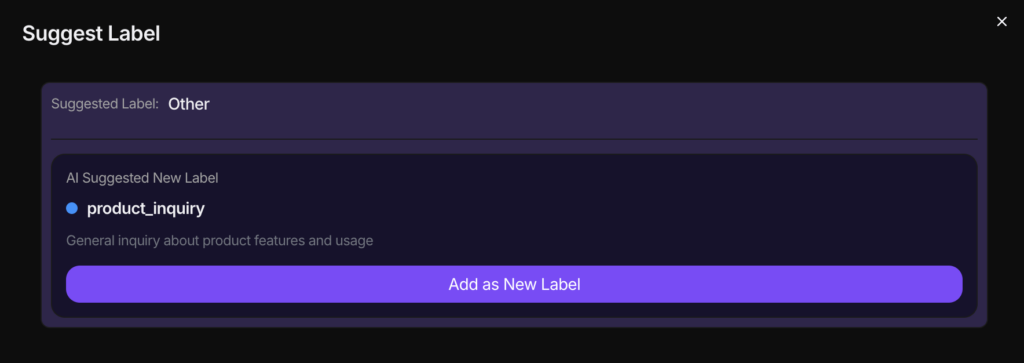
- A modal opens with a recommended label for the current conversation
- If the suggestion matches one of your existing labels, click to apply it directly — the label will appear in the conversation details panel
This is especially useful when a conversation does not clearly match your predefined labels, or when you want to review the AI’s reasoning before applying a label.
What to do when the suggestion is “Other”
If the Copilot suggests Other, it means the conversation does not match any existing label well. In this case, the suggestion flow can propose a new label name based on what the AI detected.
If your workspace allows label creation, you can:
- Review the AI-suggested label name
- Create the new label directly from the suggestion modal
- Apply it to the conversation immediately
This keeps your label system accurate and evolving without requiring agents to leave the conversation page. If you frequently see conversations going to Other, it is a signal that your label set needs a new category.
Best Practices for Agents
Use priority to decide what to respond to first. During busy periods, sort your queue by priority and work from the top. If a customer is blocked, upset, or describing a payment or access problem, treat the conversation as higher priority even if it arrived as a routine inquiry.
Use labels to keep reporting accurate. Labels drive filtering, routing, and reporting. If conversations regularly end up in Other, create a new label that fits the pattern so future conversations are categorized correctly from the start.
Override suggestions when needed. Auto-labeling and auto-prioritization are starting points, not final decisions. If the suggested label or priority does not match what you see in the conversation, adjust it. Your corrections help keep the team’s reporting clean.
