



The Summary Sidebar is a right-side panel that opens automatically whenever you select a conversation. It gives agents immediate context , without reading through the full thread , so they can respond faster and more consistently.
The sidebar contains four independent sections: a live conversation summary, customer profile details, the customer’s current page URL, and an AI-generated suggested reply. Each section updates in real time as the conversation progresses.
What You See When You Open a Conversation
As soon as you click a conversation, the sidebar appears on the right side of the screen. The four sections load independently, so information becomes available as it is ready rather than waiting for everything to load at once.
When you switch to a different conversation, the sidebar resets automatically and loads the correct data for the newly selected thread.
| Section | What it shows |
| Conversation Summary | A real-time AI-generated overview of the conversation so far |
| Customer Information | Name, email, phone number, and conversation count |
| Current Page | The URL the customer is currently viewing (when available) |
| Suggested Reply | An AI-drafted response to the customer’s latest message |
Conversation Summary
The Conversation Summary gives you a short, real-time overview of what has happened in the thread so far. It regenerates automatically as new messages arrive, so you always have an up-to-date picture without scrolling back through the history.
Manual refresh: Use the reset control on the summary section to regenerate it on demand — useful when messages arrive quickly and you want an immediate update.
If the summary fails: The section displays “Unable to generate summary.” The system retries once automatically. If it fails again, use the reset control to regenerate using the latest conversation content.
Customer Information
The Customer Information section shows the customer’s profile in a compact block:
- Full name
- Email address
- Phone number
- Total conversation count
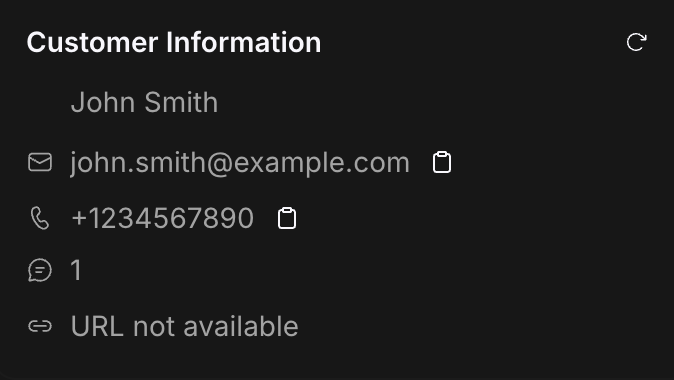
This data refreshes automatically when you switch conversations, so you always see the correct details for the currently selected thread.
Missing fields: If any field is not available, the UI displays “—” as a placeholder so you can immediately recognize missing information rather than confusing it with an empty value.
Manual refresh: Use the reset control on this section to re-fetch the latest profile data for the current conversation.
Current Page
The Current Page section shows the URL the customer is currently viewing, pulled from tracking or session metadata. The URL is clickable and opens in a new tab so you can see exactly what the customer is looking at before you respond.
If the URL is not available: The section displays “URL not available.” This typically means tracking data was not received for the session, or the channel does not support it. If the URL becomes available as the customer continues browsing, it will appear automatically.
Smart Suggested Reply
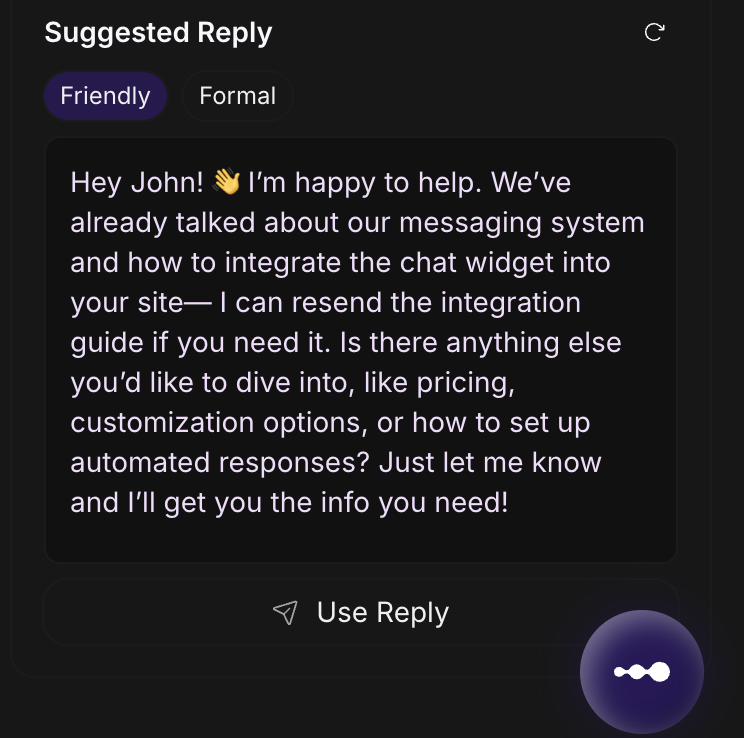
The Suggested Reply section generates a draft response based on the customer’s latest message and the full conversation context. To use it:
- Review the suggested reply in the sidebar
- Click Use Reply to insert it into your message composer
- Edit as needed before sending
If the suggested reply does not fit, use the reset control in this section to generate a new one. If you see “Unable to generate suggested reply,” reset to try again.
Choosing a tone
The Suggested Reply includes a tone selector with two options:
- Friendly — warmer, more conversational tone; suited to general support interactions
- Formal — more professional and direct; suited to escalations or business-critical exchanges
When you switch tones, Inquirly regenerates the suggested reply in the selected tone. Changing the tone only affects the Suggested Reply section — it does not reset the Conversation Summary or Customer Information.
Refreshing Individual Sections
Each section has its own independent reset control. Resetting one section does not affect the others.
Use the reset control when:
- New messages have arrived and you want an updated summary
- You want a new reply suggestion after the customer asks a different question
- Customer profile data may have changed and you need the latest version
