



Conversation filters let you narrow your queue to exactly the conversations you need. by agent, status, label, date, country, and more. Filters can be combined using AND and OR operators to build precise, multi-condition views.
Available Filter Types
Inquirly supports the following filter parameters, grouped by category:
Assignment and routing
- Assigned Agent
- Team
- Inbox
Conversation state
- Conversation Status
- Conversation Identifier
Categorization
- Labels
- Campaigns
Timing
- Created Date
- Last Activity
Customer context
- Browser Language
- Country
- Referrer Links
Custom data
- Custom Attributes added to your account
How to Apply Filters
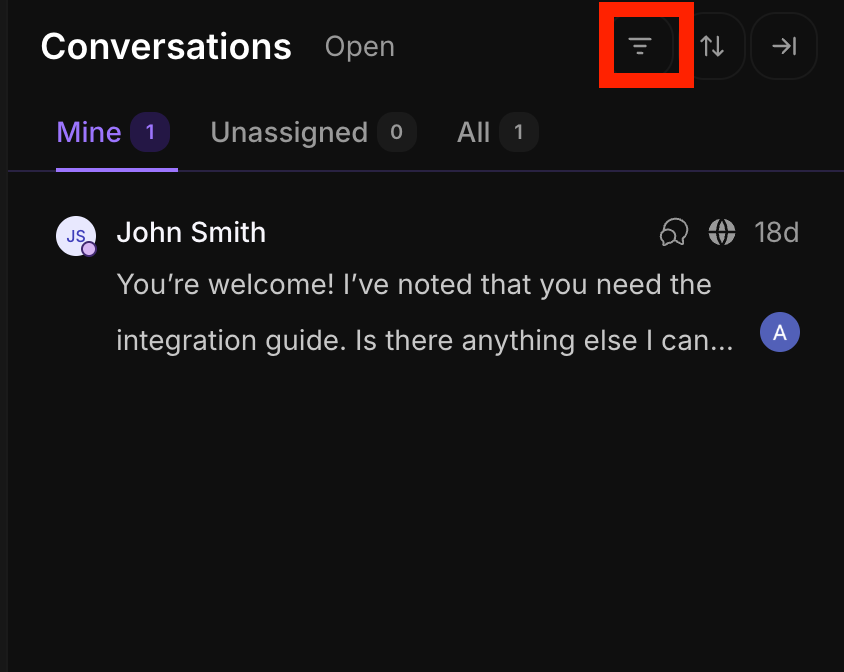
- Click the Filter icon at the top of your conversation list
- The Filter conversations modal opens
- For each filter condition, set three values:
- Filter type , what you are filtering by (for example, Status or Assignee Name)
- Operator , how the condition is evaluated (Equal to, Not equal to, Present, Not present)
- Value , the specific value to match (for example, Resolved or a specific agent name)
- To add another condition, click Add filter
- Click Apply filters to apply
Combining filters with AND / OR
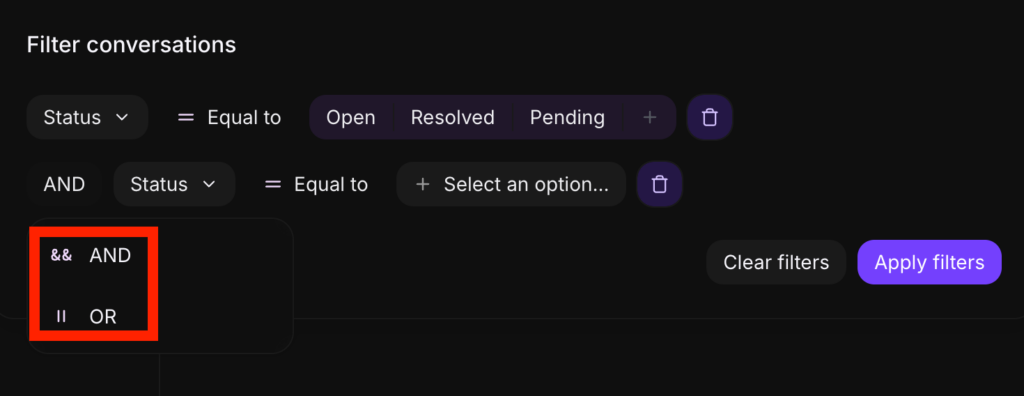
When you add multiple filter conditions, you can connect them with:
- AND , the conversation must match all conditions
- OR , the conversation must match at least one condition
Use AND when you want a precise, narrow result. Use OR when you want to surface conversations that meet any one of several criteria.
Example: Resolved conversations assigned to a specific agent
To find all resolved conversations handled by agent Fayaz:
- Set Filter type: Status → Operator: Equal to → Value: Resolved
- Click Add filter
- Set Filter type: Assignee Name → Operator: Equal to → Value: Fayaz
- Click Apply filters
The conversation list will show only resolved threads assigned to that agent.
Clearing Filters
To remove all active filters and return to your default conversation view:
- Click the Clear Filters button in the filter modal or at the top of the conversation list
- The view resets to its unfiltered state
Saving Filters as Folders
Once you have set up a filter combination that your team uses regularly, you can save it as a Folder for quick access. Saved folders appear in the left sidebar under the Conversations section, so your team can apply the same filter in one click without rebuilding it each time.
For a full guide to organizing conversations with saved folders, see Group Chats with Filters and Save as Folders.
