



Folders let you save a set of conversation filters as a persistent, one-click view in your sidebar. Instead of rebuilding filter combinations every session, you create a folder once and access it instantly whenever you need it.
Folders appear under the Conversations section of the left sidebar, alongside All Conversations, Mentions, and Unattended.
Creating a Conversation Folder
Step 1: Open the filter panel
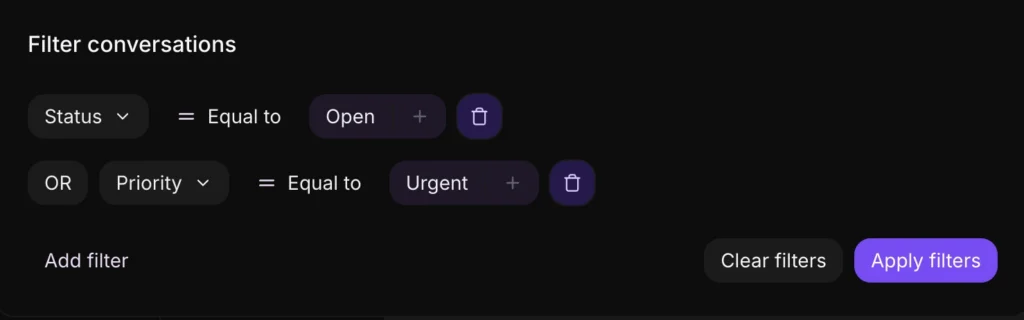
Click the Filter icon at the top of the conversation list. The Filter conversations panel opens.
Step 2: Set your filter conditions
For each filter condition, choose:
- Filter type — what you are filtering by (for example, Status, Label, Agent, or Channel)
- Operator — Equal to, Not equal to, Present, or Not present
- Value — the specific value to match
Add as many conditions as needed. Click Apply filters to see the matching conversations.
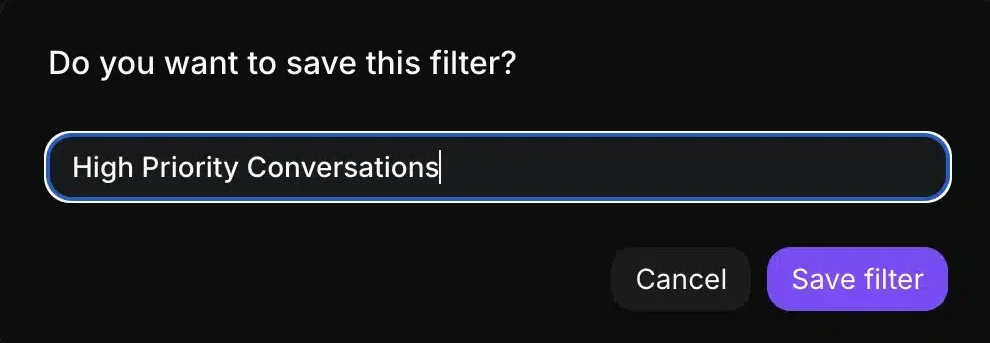
Step 3: Save the filter as a folder
Once the filtered results are showing, click the Save filter button at the top of the conversation list panel.
Step 4: Name the folder
A dialog box opens. Enter a name for the folder and click Save.
The folder now appears in your sidebar under Folders. Click it at any time to instantly load the filtered conversation view.
Accessing Saved Folders
Saved folders are always visible in the left sidebar under the Conversations section. Click any folder name to load its filtered view immediately — no need to rebuild the filters each time.
Deleting a Folder
To remove a saved folder:
- Click the folder name in the sidebar to open it
- Click the delete (bin) icon in the conversation list header
- Select Yes, Delete to confirm
The folder is removed from your sidebar. The underlying conversations are not affected — only the saved filter view is deleted.
Folder Ideas for Common Workflows
Use folders to give your team fast access to the conversation groups they return to most often:
- High-priority tickets — filter by Priority = Urgent or High
- Pending escalations — filter by Status = Pending and Label = Escalation
- Team-specific queues — filter by Assigned Team = Billing (or any team name)
- Untagged conversations — filter by Labels = Not present, useful for catching conversations that slipped through categorization
Channel-specific views — filter by Inbox = WhatsApp or Email for channel-focused agents
