



The Web Crawler lets you create a Knowledge Base automatically from an existing public website. Instead of writing articles from scratch, you provide a URL and Inquirly crawls the site, extracts the content, and generates a structured collection of articles ready for review.
This is the fastest way to populate a Knowledge Base when you already have published documentation, a help center, or product pages on a public website.
Who This Is For
| Role | How they use the crawler |
| Admins | Run crawls, manage generated collections, decide which content to keep |
| Content managers | Review and refine generated articles before publishing them |
| Agents | Use generated content as a reference when answering customers |
You need permission to access the Knowledge Base and run the Web Crawler. The URL you provide must be a valid HTTP or HTTPS URL and must be publicly accessible — the crawler cannot access pages that require login.
Where to Find It
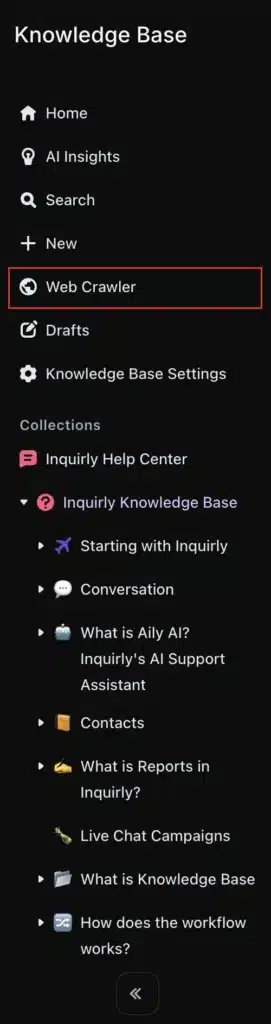
Go to Sidebar → Knowledge Base → Web Crawler.
How to Crawl a Website
Step 1: Start a new crawl
- Open Knowledge Base from the left sidebar
- Click Web Crawler
- In the Crawl Website dialog, paste the URL you want to crawl — for example, your documentation site or existing help center
- Click Submit
Tip: Use a URL that points to your documentation or help center pages. Avoid marketing or landing pages — they produce low-quality articles that require heavy editing.
Step 2: Wait for the crawl to complete
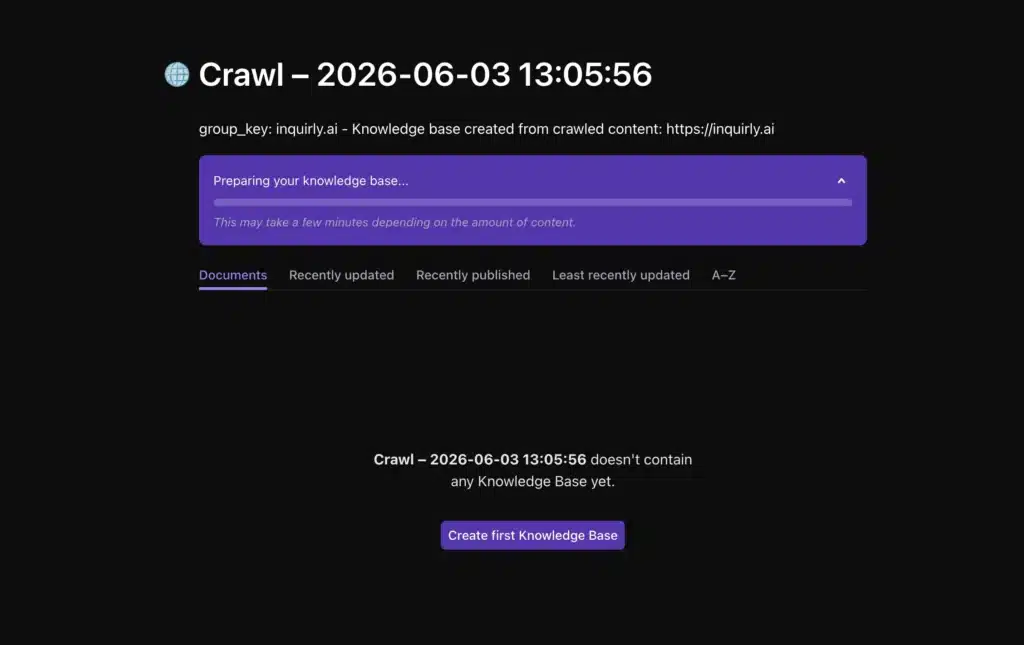
After submitting, you will see a progress message such as “Preparing your knowledge base…” The crawl runs in the background. Time to completion depends on how much content is available on the site.
Step 3: Review the generated Knowledge Base
When the crawl finishes, Inquirly automatically creates:
- A new Collection named with the crawl timestamp (example: Crawl – 2026-04-21 12:39:14)
- A generated Knowledge Base inside that collection
- Articles created from each crawled page
A “Knowledge base ready!” notification confirms the crawl is complete. Open the new collection from the left sidebar to begin reviewing.
Reviewing Generated Content
Before publishing or connecting the crawled content to Aily, do a quick review pass to confirm:
- Key pages were captured — check that your most important documentation pages are present
- Titles and headings are accurate — the crawler uses page headings to generate article titles; some may need adjustment
- Content is clean and readable — remove any navigation text, footer content, or repeated boilerplate that the crawler may have picked up alongside the main content
- No login-required pages are missing — any page that required authentication will not have been crawled
After review, you can edit, reorganize, rename, or delete articles exactly as you would with any other Knowledge Base content.
Managing Crawl Results Over Time
Each crawl creates a new, independent collection. This means you can re-run the crawler as your website changes and always have a fresh import alongside your existing content.
Recommended maintenance workflow:
- Run a new crawl when significant website content changes
- Review the new collection
- Set the new collection as your active documentation set
- Delete the previous crawl collection if it is no longer needed
If your workspace supports selecting a primary documentation source, use it to ensure the most current collection is the one your team and Aily rely on.
Tips for Better Crawl Results
Target documentation URLs, not marketing pages. The crawler extracts whatever content it finds at the URL you provide. A documentation index page (for example, https://help.yourcompany.com) produces far more useful articles than a homepage or product marketing page.
Avoid pages that require login. The crawler can only access publicly available content. Protected pages will be skipped silently — if important content lives behind authentication, you will need to add those articles manually.
Scan a few articles before publishing. After every crawl, open three to five articles from different sections and read through them. This is faster than reviewing everything and gives you a representative picture of crawl quality before you share or publish the content.
Re-crawl instead of editing extensively. If the source website changes significantly, a fresh crawl is faster than editing dozens of outdated articles. Use the previous crawl collection as a reference while the new one is being reviewed.
