



Collections are the top-level organizational units in the Inquirly Knowledge Base. Each collection is a folder that groups related documents together under a shared topic or team area. They are also the primary place where you manage who can access, edit, and share the documents inside.
What Collections Are Used For
Collections work best when organized around topic areas or team functions that share a common audience or content purpose. Examples:
- Broad topic areas: Getting Started, Billing, Troubleshooting, Product Updates
- Team-specific areas: Sales Enablement, Marketing, Operations, Infrastructure
- Product-specific areas: Mobile App, API Documentation, Integrations
A well-structured collection hierarchy makes it easier to maintain content, find documents quickly, and control who has access to what.
Creating a Collection
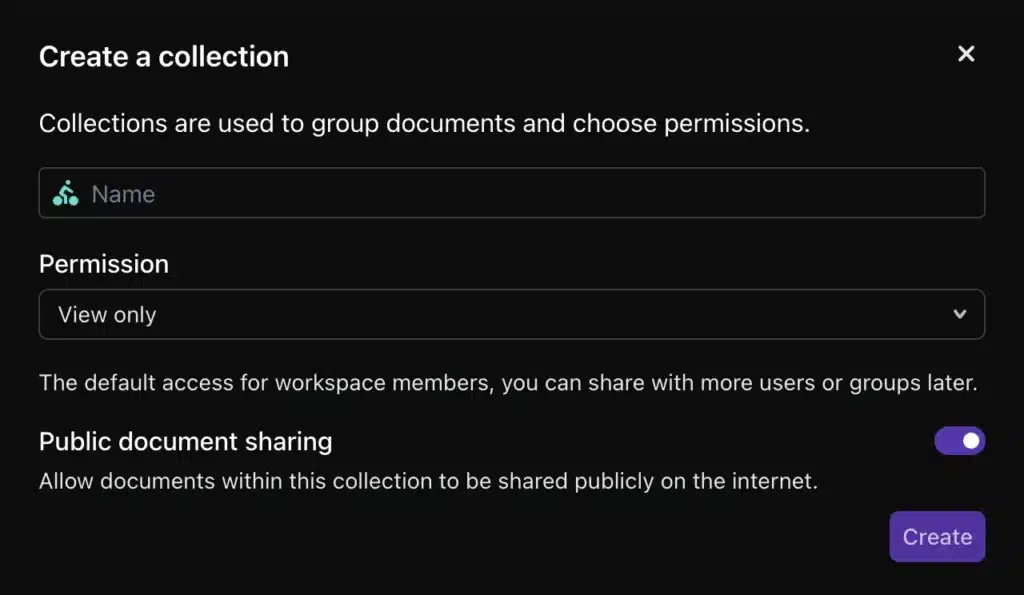
You can create a new collection in two ways:
- From the command bar (⌘ + K / Ctrl + K) — type “New collection” and select the option
- From the sidebar — click + New collection, which is available to all members by default
Collection settings
When creating a collection, you configure the following:
| Setting | What it controls |
| Name | The display name for the collection in the sidebar |
| Icon | Visual identifier for the collection |
| Color | Color coding for quick visual identification |
| Default access level | The baseline permission level for members of the collection |
| Public sharing | Whether documents inside the collection can be shared publicly |
Admin control: If you want to restrict which members can create new collections, this can be managed under Settings → Security. By default, all members can create collections.
Managing Access: Groups and Users
Collections are the central place for managing who can access your Knowledge Base content. You can assign access at two levels.
Groups
Adding a group to a collection grants all members of that group the same permission level simultaneously. This is the recommended approach for larger teams.
If your workspace has more than 10 members, use groups rather than individual user assignments to keep permission management scalable and consistent.
Users
Individual users can also be assigned to a collection directly, independent of group membership. If someone is a member of a group assigned to the collection and is also assigned individually, the higher permission level applies automatically.
Example: A group is assigned View only access to a collection. One member of that group needs to edit documents — assign them individually with Edit permissions. Their individual permission overrides the group permission for that person only.
Permission levels
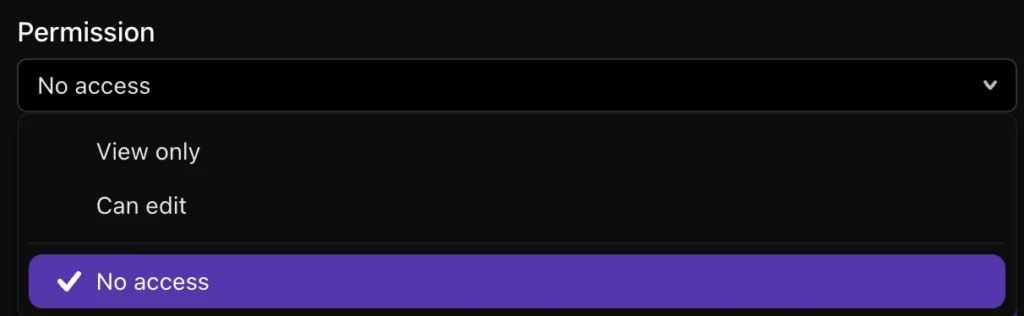
While the article does not enumerate all permission levels by name, the three referenced in the original are:
| Permission | What it allows |
| View only | Read documents; cannot edit or manage the collection |
| Edit | Create and edit documents within the collection |
| Admin | Full control — can manage permissions, settings, and delete the collection |
Organizing Collections
Reordering collections in the sidebar
Workspace admins can drag and drop collections in the sidebar to reorder them. Keep the most frequently used collections at the top for faster access.
Sorting documents within a collection
Documents inside a collection can be sorted in two ways:
- Alphabetical — documents are ordered by title
- Manual — documents appear in the order you arrange them; newly created documents are added to the top by default
To display documents in chronological order, use manual sorting and add new documents to the bottom rather than the top.
The sorting setting is available in the collection menu after the collection has been created.
