



Connecting your Knowledge Base to an Aily assistant allows Aily to use your published articles when answering customer questions. Without this connection, Aily has no access to your Knowledge Base content — even if articles are published.
There are two ways to connect: from the Knowledge Base side, or from the Aily settings. Both achieve the same result.
Method 1: Connect from the Knowledge Base
This is the most direct method when you are already working in the Knowledge Base.
- Go to Sidebar → Knowledge Base
- Open the Knowledge Base you want to connect
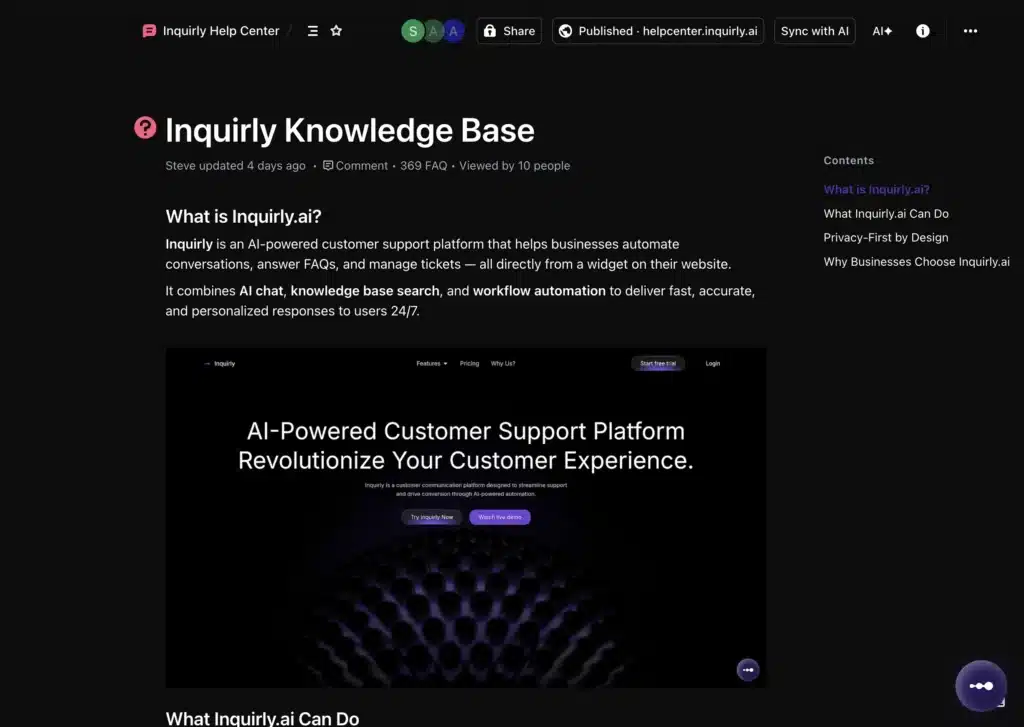
- Click Sync with AI
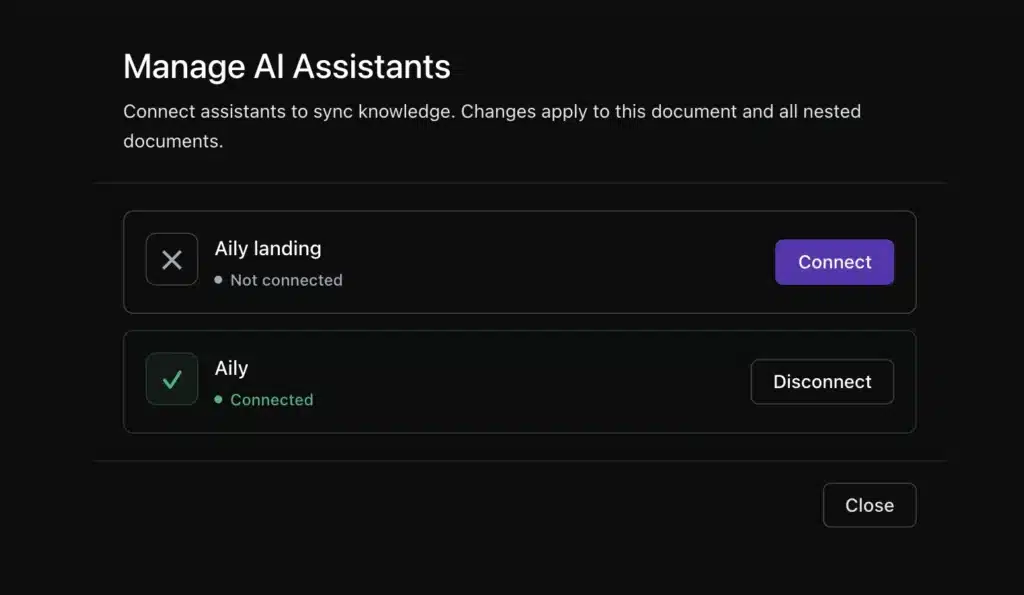
- A Select Assistants panel opens showing all available Aily assistants in your workspace
- Click Sync next to each assistant you want to connect
Note: When you sync a Knowledge Base, the action applies to that document and all child documents under it. Sub-articles are included automatically.
After syncing, Aily begins generating AI documents and FAQs from the connected content. The Select Assistants panel will show each connected assistant with a Re-Sync and Disconnect button.
Method 2: Connect from Aily Settings
You can also add Knowledge Base documents to an Aily assistant directly from the Aily section.
- Go to Settings → Aily (Assistant)
- Open the assistant you want to configure
- Navigate to the Documents section
- Add the Knowledge Base from the document list
Use this method when you are configuring a new assistant and want to connect all its sources in one place.
Re-Syncing After Edits
When you update a published article, Aily does not pick up changes automatically. You need to re-sync to push the latest content to connected assistants.
How to re-sync:
- Go to Knowledge Base and open the relevant Knowledge Base
- Click Sync with AI
- In the Select Assistants panel, click Re-Sync next to the assistant you want to update
Re-sync applies to the selected document and all its child documents. Run re-sync any time you make meaningful edits to published articles.
Disconnecting a Knowledge Base from Aily
To remove a Knowledge Base from an Aily assistant:
- Go to Knowledge Base and open the connected Knowledge Base
- Click Sync with AI
- In the Select Assistants panel, click Disconnect next to the assistant you want to remove
The Knowledge Base is removed from that assistant’s document sources. The assistant will no longer use this content when answering questions. Other connected assistants are not affected.
Alternatively, you can remove the Knowledge Base entry from the Documents list inside the Aily assistant settings.
Important: Minimum Content Length
Important: Articles or documents shorter than 150 characters will not be synced with Aily. Only content with 150 or more characters is considered for synchronization and AI generation.
If an article is not appearing in Aily’s responses after syncing, check that the article body is at least 150 characters long. Short placeholder articles or stub documents will be skipped silently during sync.
