This guide walks you through the full setup from start to finish. By the end, you will have a working Knowledge Base structure with a Collection, a Knowledge Base inside it, and your first published article ready for customers and Aily to use.
Understanding the Structure
Before you start, it helps to understand how the Knowledge Base is organized:
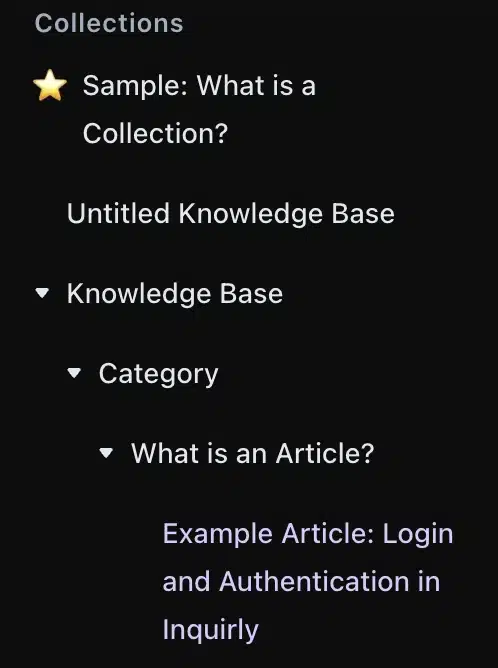
Collection → Knowledge Base → Article → Sub-articles (optional)
- Collection — the top-level folder; groups related content together
- Knowledge Base — the container inside a collection that holds articles on a specific topic
- Article — the individual page customers read
- Sub-articles — child pages under an article, used to break long content into smaller, searchable pages
Most teams start with one collection, one knowledge base inside it, and a handful of articles. You can expand the structure as your content grows.
Step 1: Create a Collection
A Collection is the top-level folder in your Knowledge Base. It groups related content into a clear topic area.
How to create a collection:
- Go to Sidebar → Knowledge Base
- Click + New Collection (or use the command bar: ⌘ + K / Ctrl + K, type “New collection”)
- Enter a clear, simple name for the collection
- Click Create
The collection will appear in the Knowledge Base tree on the left side of the screen.
Naming guidance: Name collections around topics your customers ask about — Getting Started, Billing, Troubleshooting, Meetings, or Tickets are common starting points. If your workspace uses permissions, keep collections aligned with who maintains the content so access control stays consistent.

Step 2: Create a Knowledge Base Inside the Collection
After creating your collection, open it and create a Knowledge Base inside it. The Knowledge Base is the container that holds all articles for that topic area.
How to create a Knowledge Base:
- Open the collection you just created
- Click + New Knowledge Base inside the collection
- Name it after the same topic as the collection — for example, if your collection is “Getting Started,” name the Knowledge Base “Getting Started”
- Click Create
Confirm the Knowledge Base appears nested under the collection in the left tree. You are now ready to add articles.
Most workspaces start with one Knowledge Base per Collection. This keeps navigation simple and prevents the structure from becoming hard to browse.
Step 3: Create Your First Article
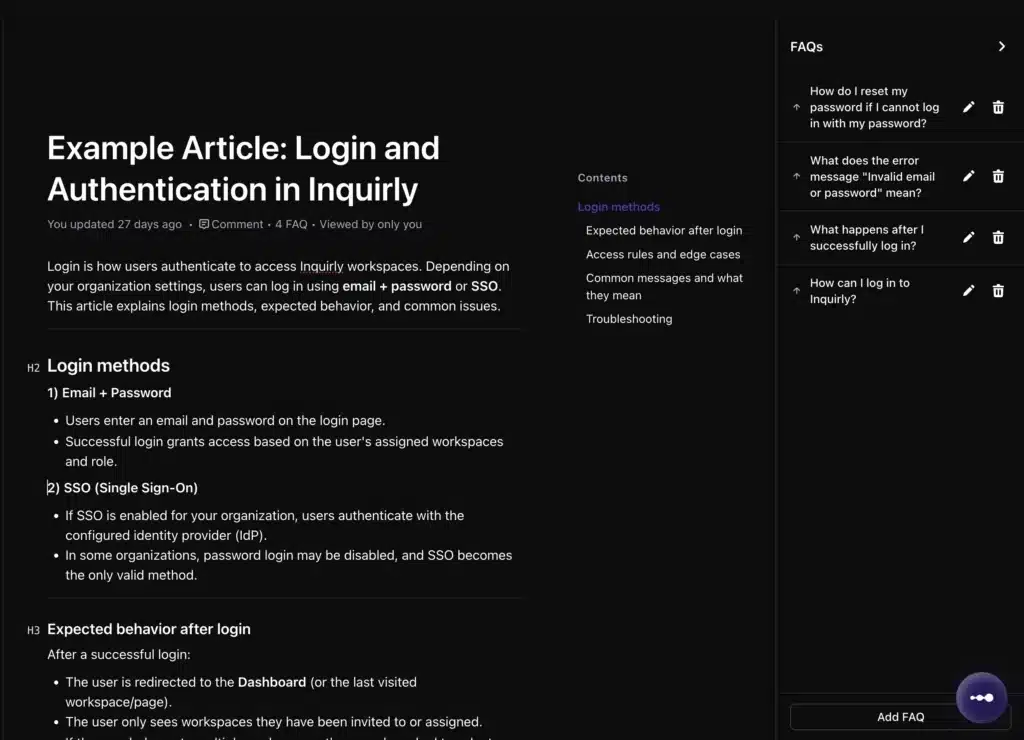
Articles are the pages your customers read. Each article should cover one focused topic and be written in the same language your customers use when asking questions.
How to create an article:
- Open the Knowledge Base you just created
- Click + New Article
- Choose a title that matches how users ask the question
Good article title examples:
- “How to connect a Knowledge Base to Aily”
- “How to create a ticket”
- “How do Meetings work”
How to write the article:
- Start with a short introduction explaining what the article helps the reader do
- Write steps or explanations in clear, simple paragraphs
- For instructions, describe what to click and what to expect after each action
- Focus on one topic per article — if the content grows too long, use sub-articles (see Step 4)
When you are finished, publish the article to make it available to customers and Aily.
Step 4: Add Sub-articles (Optional)
Sub-articles are child pages nested under an article. Use them when a topic is too long for one page or when different parts of the topic are things users might search for separately.
Example: An article called “Getting Started with Knowledge Base” could have sub-articles:
- Create a Collection
- Create a Knowledge Base
- Write your first article
- Connect your Knowledge Base to Aily
Sub-articles keep individual pages focused and readable while preserving the logical relationship between related content. They also make it easier to expand your Knowledge Base over time without restructuring everything.
How to add a sub-article:
- Open the parent article
- Click + Add Sub-article (or the equivalent option in the article menu)
- Name and write the sub-article the same way you would a regular article
- Publish when ready
Step 5: Verify Your Structure
Before moving on, confirm your Knowledge Base tree looks like this:
📁 Collection (your topic name)
📚 Knowledge Base (same topic name)
📄 Article
📄 Sub-article (optional)
📄 Sub-article (optional)
If your structure matches this pattern, your basic setup is complete. From here you can continue adding articles, improving formatting, and connecting the Knowledge Base to Aily.