



Inquirly gives you two ways to share Knowledge Base documents: internally with specific users or groups, and publicly on the internet. This guide covers both methods, plus how to set up a custom domain and what to do if sharing is disabled.
Internal Sharing
Internal sharing lets you give specific users or groups access to individual documents, in addition to the permissions already set at the collection level. This is useful when you want to share a document with someone outside the collection’s normal permission scope.
Common use cases:
- A manager shares individual meeting documents from a private collection with each participant
- A team lead shares a specific sub-section of a larger collection with a particular group
How to invite users to a document
- Open the document you want to share
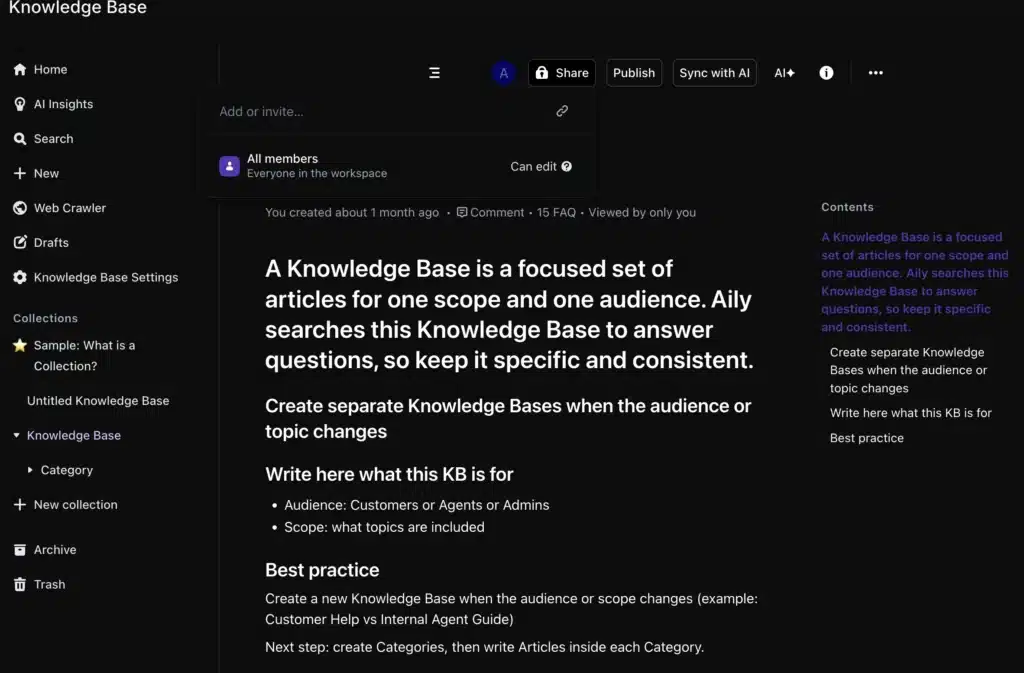
- Click the Share button at the top of the document
- In the Add or invite field, search for the users or groups you want to invite
- Select them and click Invite
Invited users receive a notification, and the document appears in their Shared with me section in the sidebar.
When inviting, you can specify access level:
- Can edit — the user can modify the document
- View only — the user can read but not edit
Publishing a Document to the Web
Documents and entire collections can be published publicly so anyone with the link can access them. This is the standard method for making help articles or documentation available to customers.
How to publish
- Open the document or collection you want to share
- Click the Share button in the top-right corner
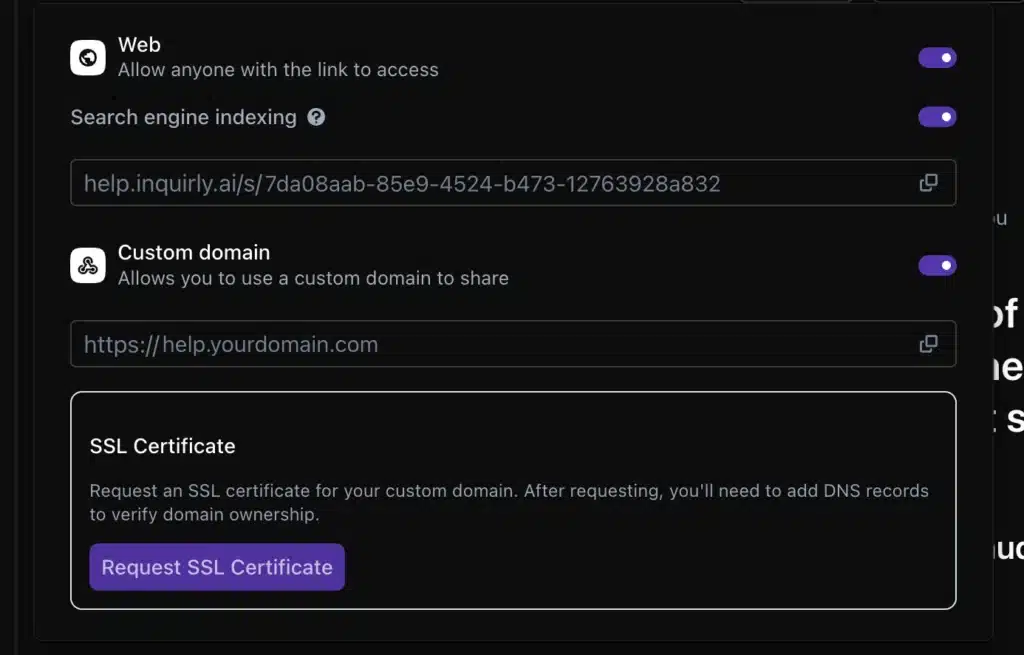
- In the publishing dialog, toggle Web to enable public access
All child documents under the published document or collection are also shared publicly by default.
Customizing the shared link
You can edit the shared link directly in the publishing dialog to make it shorter and easier to remember — useful when publishing help pages or documentation you want to link to from other places.
Search engine indexing
The publishing dialog includes a Search engine indexing toggle. When enabled, the published document can be indexed by search engines. Disable this if you want the document to be accessible via link but not discoverable through search.
Custom Domain
If you want your published Knowledge Base to appear under your own domain (for example, https://help.yourdomain.com) instead of the default Inquirly URL, a custom domain is available as an add-on in the cloud-hosted version of Inquirly.
How to set up a custom domain
- In the publishing dialog, enable the Custom domain option
- Enter your custom domain URL
- Click Request SSL Certificate
- After requesting the certificate, add the required DNS records to verify domain ownership
To get started with custom domain setup, contact hello@getinquirly.com.
When Sharing Is Disabled
If the Publish option does not appear in the sharing dialog, public sharing has been disabled — either at the workspace level or for the specific collection.
To re-enable workspace-level sharing: Go to Settings → Security → Behavior
To re-enable sharing for a specific collection: Open the collection → click … → select Edit
Note: For cloud-hosted Inquirly, publicly shared content may become unavailable if the workspace subscription lapses. Ensure your subscription is active before sharing documentation with customers.
